Want more product reviews without chasing customers by hand? Set up one automation that waits a few days after each paid order, then emails the customer asking them to review what they bought. With CartCue‘s Order Paid trigger and a built-in delay, you can do this for free set it once and every future order gets a review request automatically.
Reviews are quiet revenue: they raise conversion on the product page, build trust with first-time buyers, and feed the star ratings that show up in search. The trick is asking at the right moment, a few days after delivery, when the customer has actually used the product and asking consistently. That’s exactly what an automation is for.
What you’ll need (and which plan)
Good news: this is a 100% free automation.
- WooCommerce installed and active.
- CartCue (the free version is all you need). The Order Paid trigger, the timed delay, and the Send Email action are all included free.
- Product reviews enabled in WooCommerce (we’ll check this first).
No Pro required. (If you later want CartCue to react when a review is submitted — auto-thank 5-star reviewers, privately catch unhappy ones — that uses the Pro New Review trigger, covered at the end.)
Step 1 – Make sure reviews are turned on in WooCommerce
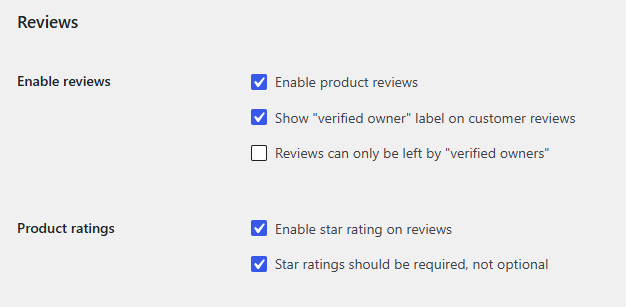
Before automating the ask, confirm customers can actually leave reviews. Go to WooCommerce → Settings → Products and find the Reviews section. Enable product reviews, and decide whether to allow reviews only from verified owners (recommended — it keeps reviews genuine and cuts spam).
Step 2 – Open CartCue and start the review request Play
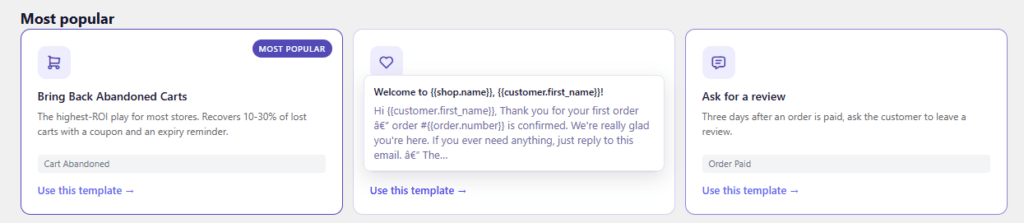
The fastest route is the ready-made recipe. In your WordPress admin, go to CartCue → Templates, find “Ask for a review,” and install it. It comes pre-built as Order Paid → wait 3 days → send review email, so you can be live in under a minute. Prefer to build it yourself? Choose New → Build from Scratch instead and follow Steps 3–5.
Step 3 – Set the trigger (WHEN): Order Paid
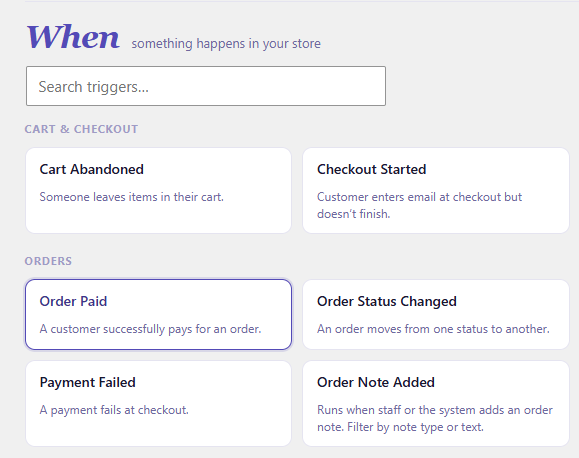
Choose Order Paid as the trigger. This fires once a customer’s payment is confirmed — the natural starting point for a post-purchase follow-up. Leave “recheck before run” on, so CartCue re-confirms the order is still valid (not refunded or cancelled) before the email goes out days later.
Step 4 – Set the timing (the delay)
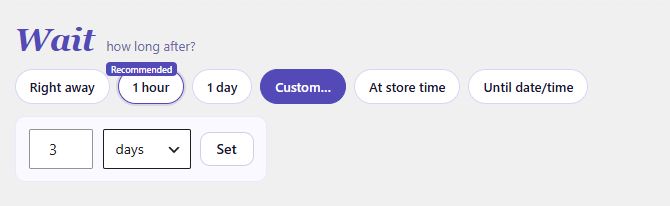
Set the delay to 3 days after the order is paid. That’s the sweet spot for most stores: long enough that the product has likely arrived and been used, soon enough that the purchase is still fresh. If you sell items with longer shipping, bump it to 5–7 days. The recipe also sets a 60-day cooldown per customer so the same buyer isn’t asked again too soon.
Step 5 – Write the email (THEN): Send Email
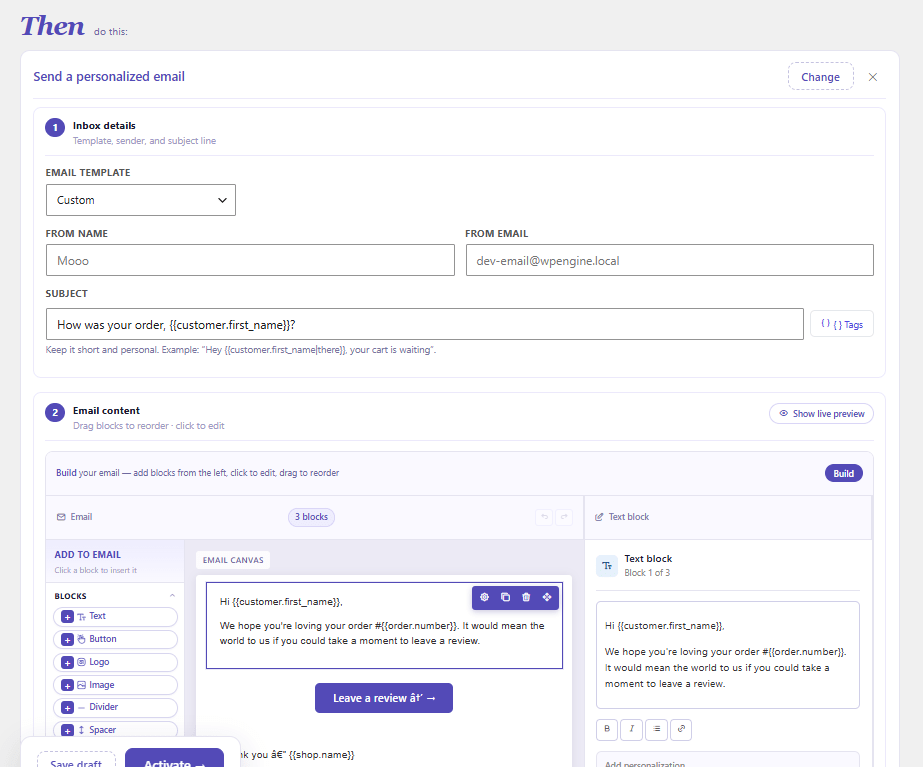
Add a Send Email action and write a short, friendly ask. Use CartCue’s merge tags so each email is personalized automatically. These tags are available for a post-purchase email: {{customer.first_name}}, {{order.number}}, {{order.items}}, {{product.name}}, {{shop.name}}, and {{shop.url}}.
Copy-paste template:
Subject: How was your order, {{customer.first_name}}?
<p>Hi {{customer.first_name}},</p>
<p>We hope you're loving your order #{{order.number}}. It would mean a lot
   if you took a moment to share what you think.</p>
<p><a href="{{shop.url}}">Leave a quick review →</a></p>
<p>It only takes a minute and helps other shoppers (and us) a ton.</p>
<p>Thanks so much,<br>The {{shop.name}} team</p>
<p style="font-size:11px;color:#999"><a href="{{shop.unsubscribe_url}}">Unsubscribe</a></p>
Tip on the review link: CartCue gives you
{{shop.url}}to link back to your store. For a sharper ask, link straight to the product page’s reviews tab (e.g. add#tab-reviewsto the product URL) so the customer lands right on the review form instead of the homepage.
Step 6 – Activate and watch the results
Turn the Play on. From now on, every paid order quietly queues a review request for three days later, no manual work. Open the Play’s report to see opens, clicks, and how many reviews are coming in, then adjust the delay or subject line if you want more.
Make it convert better
- Keep it short and warm. One clear ask, one link. Long emails get ignored.
- Ask once, politely. The 60-day cooldown stops repeat nagging; respect it.
- Time it to delivery, not purchase. If shipping takes a week, a 3-day delay asks too early — match the delay to your real fulfilment time.
- Consider a small thank-you. You can add a Generate Coupon action (also free) to include a modest “thanks for reviewing” discount on their next order. Offer it for leaving a review, not a positive one.
- Protect deliverability. CartCue’s quiet hours and one-click unsubscribe keep these emails out of the spam folder — which is what keeps them working.
Want to go further? (CartCue Pro)
This whole automation is free, but a few review-related upgrades live in CartCue Pro:
- React when a review is submitted – the New Review trigger lets you auto-thank 5-star reviewers and privately reach out to anyone who leaves a low rating before it sits on your product page.
- Longer follow-up sequences – free Plays allow up to two timed steps; Pro removes that limit if you want a gentle second nudge.
- Smarter targeting – Pro rules like first-time buyer or total spent let you tailor who gets asked.
Frequently asked questions
Can WooCommerce send review request emails on its own? No. Core WooCommerce collects reviews but has no automated “ask for a review” email. A free automation plugin like CartCue adds the Order Paid trigger and timed email to do it for you.
When is the best time to ask for a review? A few days after the order is paid and likely delivered — three days is a solid default. Adjust to match your shipping time so the customer has actually received the product.
Is this really free? Yes. The Order Paid trigger, the delay, and the review email are all in free CartCue. Only review-reaction features (auto-thanking reviewers, catching negative reviews) need Pro.
Can I ask guests who checked out without an account? Yes — the email sends to the address on the order. Note that WooCommerce may require shoppers to be logged in to submit a review, depending on your “verified owner” setting.
How do I avoid pestering the same customer? Keep the per-customer cooldown (60 days by default), and ask only once per order. CartCue handles the cooldown for you.