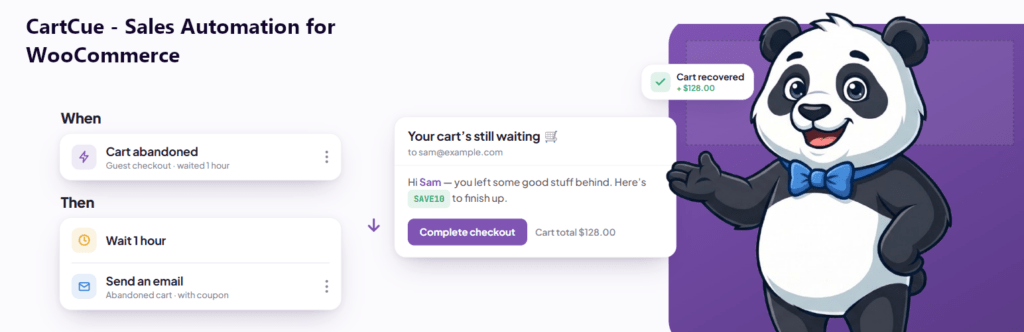
Want to send every customer a discount on their birthday automatically? With the CartCue Customer Birthday trigger you build one automation that runs every day, finds the customers whose birthday is today, generates a unique coupon, and emails it to them. Set it up once and it runs forever, no manual sending.
Birthday emails are some of the highest-engagement messages a store can send: they’re expected, they’re personal, and they arrive with a built-in reason to buy. Here’s how to set one up in WooCommerce in about ten minutes.
What you’ll need
This automation has three requirements:
- WooCommerce installed and active on your WordPress site.
- CartCue installed and active — the free version is enough to install and explore.
- CartCue Pro to actually run it. The Customer Birthday trigger is a Pro feature. In the free version it appears as a locked preview that prompts you to upgrade — it won’t send live birthday emails. To put a real birthday coupon Play live, you’ll need CartCue Pro.
Quick summary: the coupon and email pieces exist in free CartCue, but the birthday trigger that schedules them is Pro-only, so a working birthday coupon automation requires CartCue Pro.
Before you start: collect customer birthdays
The birthday automation matches each registered customer’s birthday against today’s date, so the birthday has to live in their WooCommerce profile first. CartCue reads it from a user-meta field (the default key is billing_birthdate, but you can point it at any meta key you already use).
If you don’t collect birthdays yet, add a birthday field to your registration or account form — most WooCommerce checkout-field plugins can do this — and store the value as YYYY-MM-DD. CartCue also understands common formats like DD/MM/YYYY and MM-DD. The year is ignored for matching; only the month and day matter.
Note: the Customer Birthday trigger runs for registered customers (people with an account). Guests who checked out without an account won’t have a stored birthday.
Step-by-step: build the birthday coupon Play
- Go to CartCue → Automations → New and start a blank Play (or use the WHEN → IF → THEN builder).
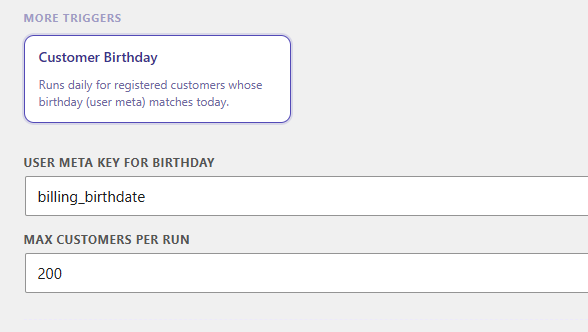
- Choose the trigger (WHEN): Customer Birthday. (Pro) It runs once daily and finds customers whose stored birthday matches today. In free CartCue this trigger is a locked preview; selecting and running it for real requires Pro.
- Set the trigger options: confirm the user-meta key holding the birthday (default
billing_birthdate) and the max customers per run (default 200 — raise it if you have a large list). - Add a condition (IF) — optional but recommended: to keep coupons going to real buyers, add a rule such as Customer total spent is greater than 0 or Customer has purchased before. (These targeting rules are Pro — and you’re already on Pro for the trigger.) This stops fresh sign-ups who never bought from collecting a discount.
- Add the first action (THEN): Generate Coupon. (Available in free CartCue.) Pick a percentage or fixed discount, set the prefix (e.g.
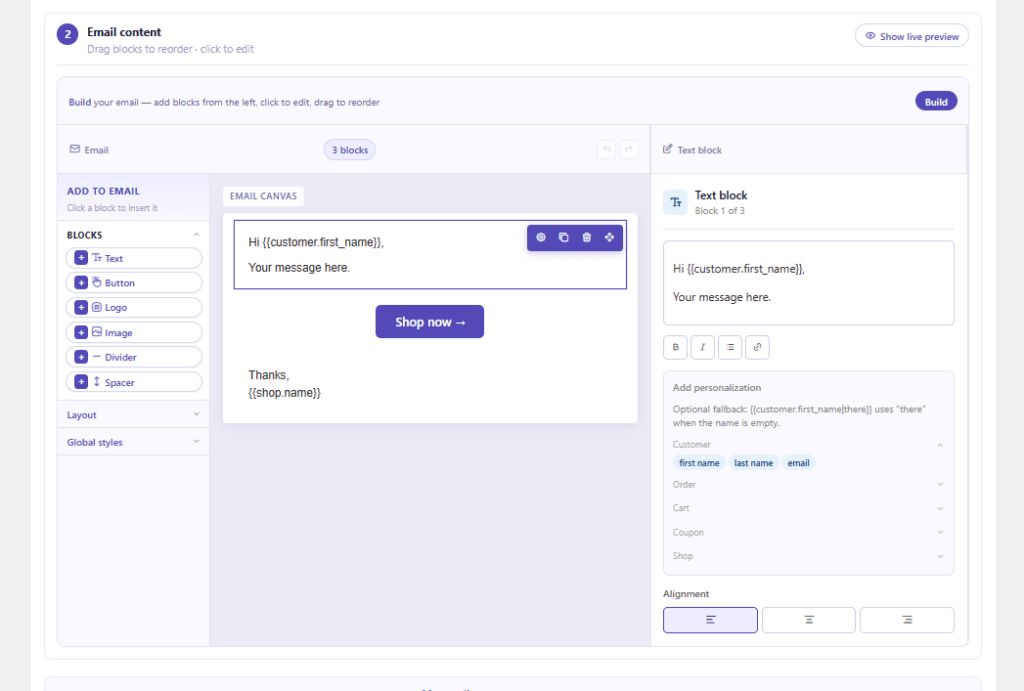
BDAY-), an expiry (e.g. 14 days), usage limit of 1, and “individual use” so it can’t be stacked. CartCue mints a unique code per customer. - Add the second action: Send Email. (Available in free CartCue.) Write your birthday message and drop in the merge tags so the coupon and name fill in automatically (template below).
- Set the timing: send immediately on the day, and let quiet hours hold any send until a sensible time so nobody gets a 3 a.m. email.
- Activate the Play. That’s it — from now on it runs every morning and emails today’s birthday customers without you touching it.
Birthday email template (copy & paste)
Use CartCue’s merge tags so each email is personalized with live data:
Subject: Happy birthday, {{customer.first_name}} — a gift inside 🎁
<p>Happy birthday, {{customer.first_name}}!</p>
<p>To celebrate, here's a little something from all of us at {{shop.name}}.</p>
<p>Use code <strong>{{coupon.code}}</strong> for your birthday discount.</p>
<p><a href="{{shop.url}}">Treat yourself</a> — your code expires {{coupon.expiry}}.</p>
<p>— The {{shop.name}} team</p>
<p style="font-size:11px;color:#999"><a href="{{shop.unsubscribe_url}}">Unsubscribe</a></p>{{customer.first_name}}, {{coupon.code}}, {{coupon.expiry}}, {{shop.name}}, and {{shop.url}} are filled in for each customer at send time.
Tips to make it convert
- Give a real reason to act now. A 14-day expiry plus the words “expires {{coupon.expiry}}” creates gentle urgency without feeling pushy.
- Gate it to buyers. The optional IF rule keeps your margin protected and your discounts meaningful.
- Respect quiet hours and consent. CartCue’s built-in quiet hours, frequency caps, and one-click unsubscribe keep you compliant and out of the spam folder, which protects deliverability, and deliverability protects sales.
- Track the revenue. Open the Play’s report to see opens, clicks, and the actual revenue the birthday coupon brought back. That’s the number that tells you whether to bump the discount up or down.
Frequently asked questions
Do I need CartCue Pro to send birthday coupons? Yes. The Customer Birthday trigger is a CartCue Pro feature. The free version installs the coupon and email actions and shows the birthday trigger as a locked preview, but scheduling and sending live birthday coupons requires CartCue Pro.
Do I have to install anything to do this? Yes — you need WooCommerce and the CartCue plugin installed and active. You can start with the free CartCue plugin, then upgrade to Pro to switch the birthday automation on.
Does WooCommerce send birthday coupons by default? No. Core WooCommerce has no birthday trigger or scheduled email. You need an automation plugin like CartCue Pro to detect each customer’s birthday and send the coupon automatically.
Where does the customer’s birthday come from? From a date stored in the customer’s user-meta (default key billing_birthdate). You collect it with a birthday field on your registration or account form; CartCue then matches the month and day against today.
Can I send birthday discounts to guests who don’t have an account? Not with the birthday trigger — it runs for registered customers, because the birthday lives in their account profile. Encourage account creation at checkout if you want broader coverage.
How do I make sure each coupon is single-use? In the Generate Coupon action, set the usage limit to 1 and enable “individual use.” CartCue creates a unique code per customer so codes can’t be shared or reused.
Will customers get the email at a weird hour? No. CartCue’s quiet hours hold sends until your chosen window, so birthday emails go out at a reasonable time regardless of when the daily check runs.
Ready to put it live? The birthday coupon Play needs CartCue Pro — one of dozens of WooCommerce automations you can set and forget.