
What It Does, and Why It’s Different From Other Google Analytics Plugins
GIA GA4 is a WordPress plugin that sends your WooCommerce shopping data to Google Analytics 4 accurately, completely, and without needing Google Tag Manager or a developer. You paste in your GA4 Measurement ID, and it does the rest.
This guide explains, in plain terms, what the plugin does, how it works, and most importantly how it differs from the popular Google Analytics plugins you’ve probably already heard of.
The problem it fixes: GA4 shows fewer sales than you actually made
Almost every WooCommerce store runs into the same frustrating gap. You made 100 orders this week, but Google Analytics only reports 70 purchases. Where did the other 30 go?
There are a few usual culprits:
- Ad blockers and privacy browsers stop the tracking script from running, so the purchase is never recorded.
- Cookie consent banners block analytics until the shopper clicks “accept” and many never do.
- Page caching serves a saved copy of the thank-you page, which can fire the wrong data or no data at all.
- Theme and checkout quirks mean the tracking code sometimes just doesn’t run.
The result is unreliable numbers. Your ad campaigns look worse than they are, your conversion rate is wrong, and you can’t trust your own reports.
GIA GA4 is built specifically to close that gap. Its whole job is to make the sales data in GA4 match the orders in WooCommerce as closely as possible.
How GIA GA4 compares to the popular plugins
The Google Analytics plugins most stores reach for first weren’t built for this exact problem. Here’s an honest look at each one and where GIA GA4 does something different.
Google Analytics for WooCommerce (by WooCommerce/Automattic)
This is the official integration, with a very large user base, and it adds the GA4 tracking code plus core ecommerce events from the WooCommerce settings. It’s a reasonable starting point and it’s free.
Where GIA GA4 goes further: the official plugin tracks the basics, but it has no server-side backup to recover sales lost to ad blockers, no built-in consent banner, and a thinner set of funnel events. GIA GA4 adds the full funnel, a server-side safety net with deduplication, and consent handling built in.
GA Google Analytics (by Jeff Starr)
This is a deservedly popular, lightweight plugin that does one thing well: it drops the Google Analytics tag onto every page of your site. It’s fast and simple.
But it is not an ecommerce tool it doesn’t track add-to-cart, checkout, or purchases at all. It’s for site-wide pageview tracking. GIA GA4 is the opposite end of the spectrum: a complete WooCommerce ecommerce tracker. If all you need is the GA tag on a blog, that plugin is great; if you run a store and need sales data, you need something like GIA GA4.
GTM4WP (Google Tag Manager for WordPress)
GTM4WP is powerful and widely used. It installs your Google Tag Manager container and pushes a “data layer” of GA4 ecommerce information for GTM to read.
The catch is the word Tag Manager. To get anything into GA4, you still have to build and configure the tags, triggers, and variables inside the GTM interface yourself which is exactly the technical work most store owners are trying to avoid. It also, by its own documentation, does not track refunds or promotions, and it has no server-side backup for blocked browsers. GIA GA4 needs no Tag Manager at all, tracks refunds, and adds the server-side safety net.
MonsterInsights and ExactMetrics
These two are siblings from the same company, and they’re the best-known “Google Analytics dashboard” plugins they pull GA reports into your WordPress admin so you don’t have to log into Google. They’re polished and easy to set up for general site analytics.
For a store, though, the important detail is that WooCommerce ecommerce tracking is a paid Pro feature in both. The free versions give you a reporting dashboard, not full ecommerce event tracking. And even in Pro, the focus is on showing reports inside wp-admin, not on the data-reliability problem there’s no server-side Measurement Protocol backup to recover lost sales. GIA GA4 includes complete ecommerce tracking with no paywall on the core funnel, and prioritizes getting the numbers right over building another dashboard.
The three things that set GIA GA4 apart
Cutting through all of the above, GIA GA4 is different in three concrete ways:
- It tracks the complete shopping funnel out of the box – not just purchases, but product views, cart actions, every checkout step, coupons, refunds, and more with no Tag Manager and no paid upgrade for the core events.
- It has a server-side backup with deduplication. When the browser tracking is blocked, the plugin sends the sale to GA4 directly from your server. It cleverly avoids double-counting, so you get exactly one purchase recorded either way. None of the five plugins above do this.
- It handles consent and privacy for you. A built-in cookie consent banner, Google Consent Mode V2, geo rules, and connections to popular consent plugins are all included so EU/UK stores stay compliant without extra wrestling.
Side-by-side comparison
| GIA GA4 | Google Analytics for WooCommerce | GA Google Analytics | GTM4WP | MonsterInsights / ExactMetrics | |
|---|---|---|---|---|---|
| Mainly built for | WooCommerce sales accuracy | Basic Woo → GA4 link | Adding the GA tag site-wide | Deploying Google Tag Manager | GA reports in wp-admin |
| Full GA4 ecommerce funnel | Yes, built in | Core events only | No ecommerce at all | Yes, but you build tags in GTM | Paid Pro feature |
| Server-side backup for blocked sales | Yes (with dedup) | No | No | No | No |
| Refund tracking | Yes | — | No | No (by design) | — |
| Built-in consent banner | Yes | No | Consent signals only | Consent Mode default only | Via add-on |
| Needs Google Tag Manager / a developer | No | No | No | Yes | No |
| Cost for ecommerce tracking | Included | Free | N/A | Free (plus GTM work) | Paid (Pro) |
The popular plugins are popular for good reasons they’re free, well-supported, and fine for general analytics or simple setups. GIA GA4 is aimed at the narrower job of making a WooCommerce store’s GA4 sales data trustworthy.
What GIA GA4 tracks
Most plugins record a purchase and maybe an add-to-cart. GIA GA4 follows the shopper through the entire journey, so GA4 can show you where people drop off, not just who bought. It works on both classic WooCommerce templates and the newer WooCommerce Blocks checkout.
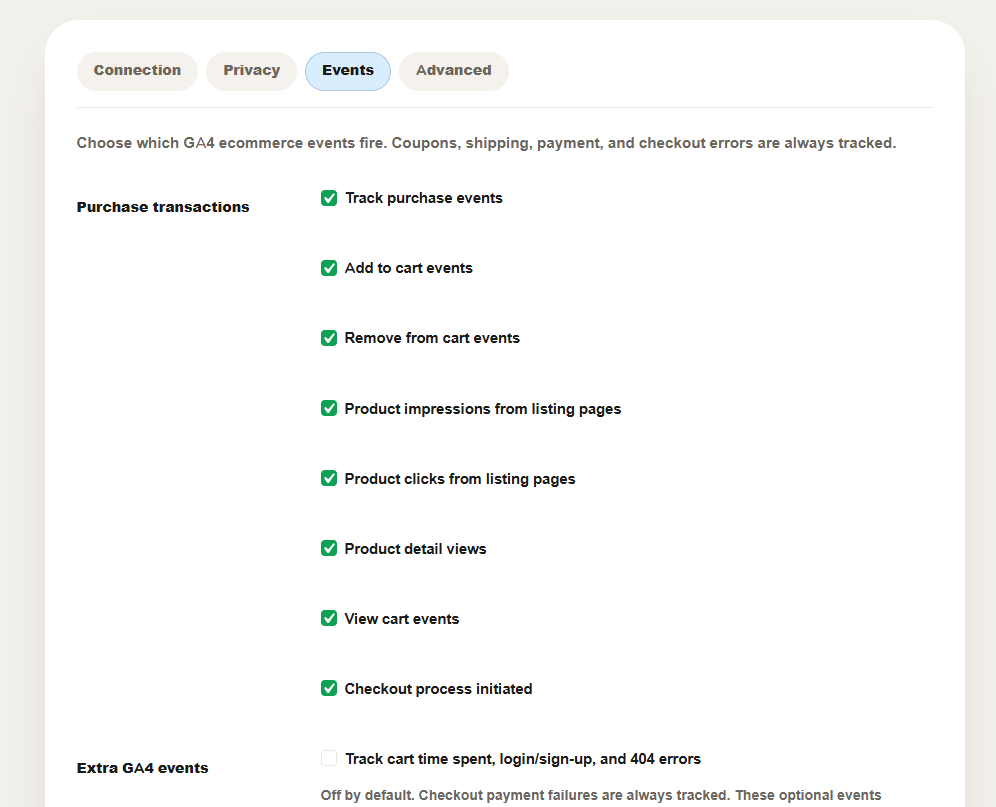
Here’s the full set of events, grouped by stage:
Browsing products
- view_item_list — shop, category, and tag pages
- view_item — product pages (and when someone switches a variation)
- select_item — clicking a product from a list
- view_search_results — on-site searches
- view_promotion — on-sale products and store notices
Cart
- add_to_cart, remove_from_cart, view_cart
Checkout
- begin_checkout
- add_shipping_info and add_payment_info
- coupon_applied, coupon_removed, select_promotion
- purchase — the completed sale, with order total, tax, shipping, coupons, payment method, and a “new vs returning customer” flag
- payment_failure — failed or rejected checkouts, so you can see your biggest leak
After the sale
- refund — when you process a refund in WooCommerce
- login / sign_up — optional
- Subscription events for WooCommerce Subscriptions (started, cancelled, expired, and renewals)
You can switch the main events on or off individually if you want to reduce volume.
The headline feature: a server-side safety net
This is the part no other plugin on the list offers, and it’s worth understanding in plain terms.
Normally, a sale is recorded by JavaScript running in the shopper’s browser. If that script is blocked by an ad blocker, a privacy setting, or a cache problem the sale never reaches GA4, even though the order is real.
GIA GA4 adds a second path. When an order is placed, the plugin quietly saves the shopper’s Google Analytics ID on the order. Then, when the order is marked complete (or processing your choice), it sends the purchase to GA4 directly from your server, using Google’s Measurement Protocol. This send happens in the background, so it never slows down or risks the customer’s checkout, and it automatically retries if it fails.
The clever bit is how it avoids double-counting. Both the browser and the server tag the purchase with the same unique ID. Google sees the matching IDs and keeps only one. So:
- If the browser tracking worked → the server copy is ignored. One purchase recorded.
- If the browser tracking was blocked → the server copy fills the gap. One purchase recorded.
Either way, you get exactly one accurate sale. The plugin also loads the thank-you page purchase data fresh (instead of from a cached copy), so caching can’t corrupt your numbers and it checks the order is genuinely valid before sending anything.
Privacy and consent, handled for you
For stores in the EU, UK, and other privacy-regulated regions, getting cookie consent right is one of the hardest parts of analytics. GIA GA4 builds it in:
- Google Consent Mode V2 is supported, and analytics default to “denied” until the shopper agrees (you can change this).
- A built-in consent banner is included, and it automatically steps aside if you already use a dedicated consent plugin.
- Geo rules can default EU/EEA/UK visitors to “denied” and US visitors to “granted,” with finer per-region rules available.
- It connects to popular consent platforms — Cookiebot, CookieYes, and Complianz — and the WordPress Consent API, so it cooperates with whatever you already run.
- The shopper’s consent choice is stored on the order, so even the server-side backup respects it.
Enhanced Conversions for Google Ads are supported too, with customer data hashed (scrambled) before it’s ever sent.
Richer product data on every event
The more detail GA4 has about each product, the more useful your reports. On every event, GIA GA4 can include:
- Product categories (up to five levels deep)
- Brand (detected automatically from common brand setups)
- GTIN / EAN / UPC barcode, if you store it
- Variant, image, and stock status
- The sale discount amount on items that are on sale
- Which list or page the product was first seen in, carried all the way through to the purchase
You can choose whether GA4 sees your product ID or your SKU, and tax handling stays consistent across every event so the numbers always add up.
The built-in dashboard
GIA GA4 includes a light dashboard under GIA GA4 → Analytics. It’s meant to give you a quick pulse on the store, not to replace GA4:
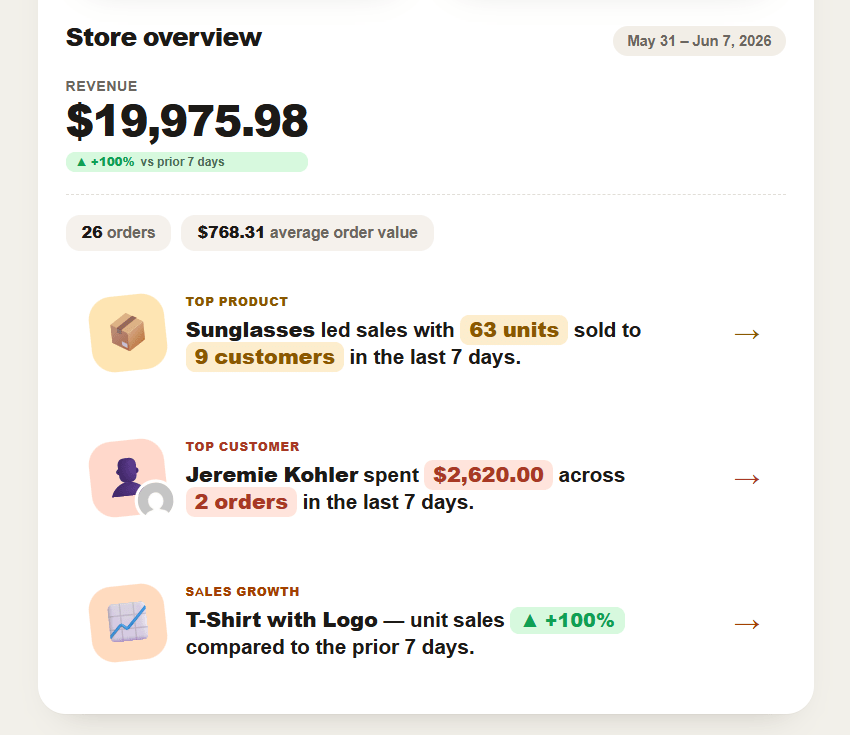
- Overview — setup status, a tracking health check, and weekly insights (revenue, refunds, customer mix, checkout risk, and an estimate of your GA4-vs-orders gap when Google Site Kit is connected)
- Traffic — GA4 sessions, channels, and landing pages (shown when Site Kit is connected)
- Products — a view-to-purchase report that flags products with lots of views but few sales (no Google connection needed for this)
- Customers — your top customers by total spend
Works with your existing setup
GIA GA4 is built to fit a modern WooCommerce store:
- High-Performance Order Storage (HPOS) compatible
- Full WooCommerce Blocks cart and checkout support (it also turns off the Blocks built-in analytics to prevent duplicate events)
- WooCommerce Subscriptions lifecycle and renewal tracking
- Google Site Kit for traffic reports, and Google Tag Manager if you’d rather deploy through it
- Multi-currency stores (reads rates from WOOCS and WooPayments)
- Product Bundles, and optional wishlist tracking with YITH Wishlist
Settings you can control
Everything is configured from the plugin’s settings, organized into Connection, Privacy, Events, and Advanced tabs. The most useful controls include:
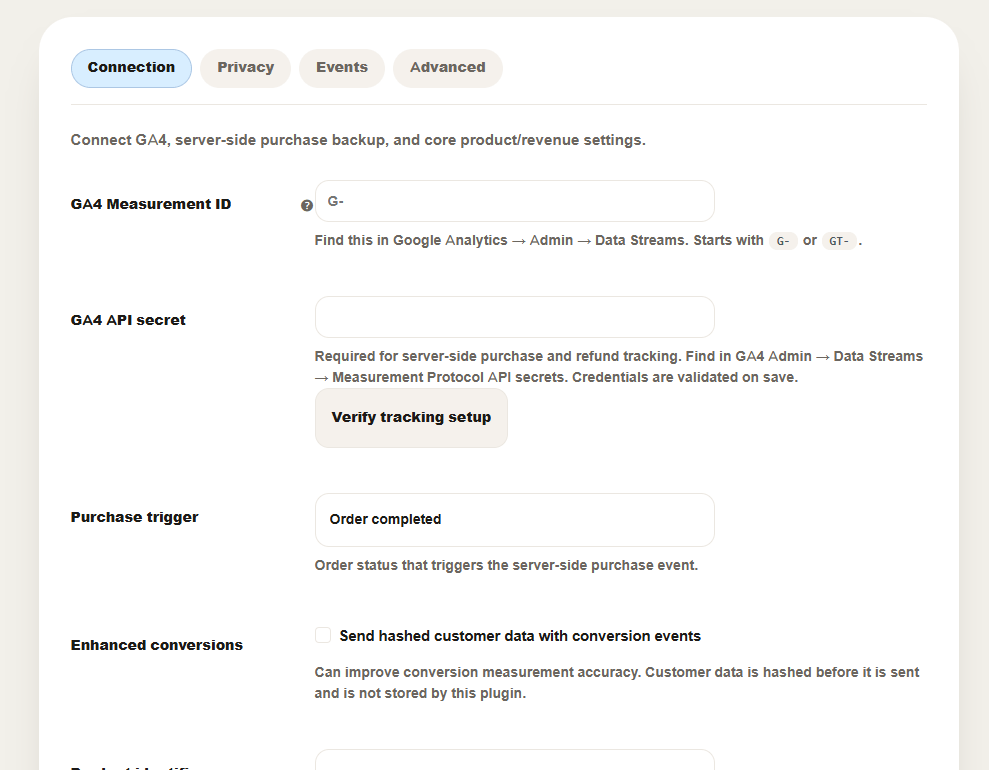
- Connection: GA4 Measurement ID, GA4 API Secret (for the server-side backup), optional GTM container ID, cross-domain linking
- Google Ads: conversion ID and label, Enhanced Conversions
- Events: turn individual events on/off; choose how add-to-cart is detected for theme compatibility
- Revenue: count gross or net revenue; include or exclude tax and shipping; normalize foreign currencies
- Server-side: send on order “Processing” or “Completed”; match browser timing to avoid counting unfinished orders
- Consent: default state, banner mode, geo and per-region rules, consent-plugin bridges
- Exclusions: skip tracking for admins, chosen user roles, or specific URL patterns and pages
- Privacy: auto-expire stored logs after 30–365 days
Setting it up takes about five minutes
- Make sure WooCommerce is installed and active.
- Install and activate GIA GA4.
- Follow the onboarding wizard, or open GIA GA4 → Settings.
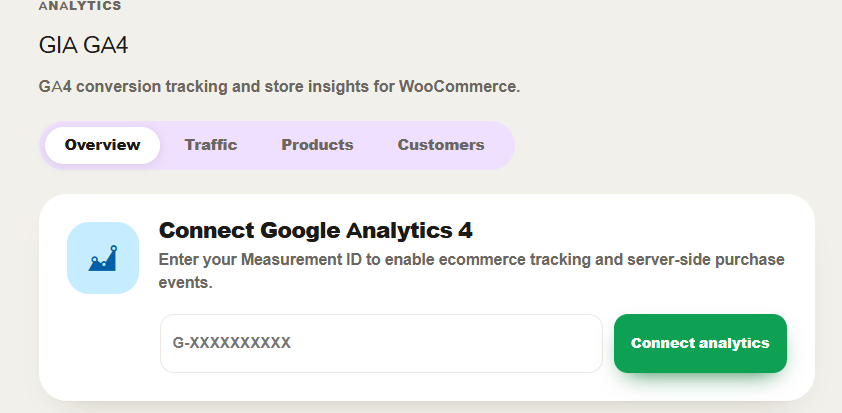
- Paste in your GA4 Measurement ID (it looks like G-XXXXXXXXXX).
- For the reliability features, add your GA4 API Secret so server-side tracking can run.
- Open your store in a private browser window and confirm events appear in GA4’s Realtime or DebugView or use the plugin’s built-in verification tool.
When a different plugin might suit you better
To be fair, GIA GA4 isn’t the right tool for every situation:
- If you only run a blog or content site with no store, a lightweight tag plugin like GA Google Analytics is simpler.
- If your main goal is reading GA reports inside wp-admin and you don’t mind paying, MonsterInsights or ExactMetrics are built around that.
- If you have an agency or a complex setup that already lives in Google Tag Manager, GTM4WP gives you that control.
But if you run a WooCommerce store and your real problem is “why don’t my GA4 sales match my orders?” that’s the exact problem GIA GA4 was built to solve, and it’s the one area where it clearly does more than the alternatives.