Want customers to always know where their order is without you lifting a finger? Set up automations that email a branded update each time an order moves forward: a reassuring “we’re preparing it,” a “now processing,” and a “shipped” with tracking. With CartCue’s Order Status Changed trigger, all three are free and run automatically on every order.
Proactive status emails are the single best way to cut “where is my order?” support tickets. Customers who get timely updates trust you more, contact you less, and come back more often. Here’s how to build the full preparing → processing → shipped journey.
What you’ll need
This is a 100% free setup.
- WooCommerce installed and active.
- CartCue (the free version is enough). The Order Status Changed and Order Paid triggers and the Send Email action are all free.
No Pro required.
First, a quick note on WooCommerce statuses
Core WooCommerce ships with these order statuses: Pending payment, Processing, On hold, Completed, Cancelled, Refunded, and Failed. There’s no native “Preparing” or “Shipped” status — so here’s how the three updates map:
- Preparing = a reassurance email sent a couple of days after payment while the order is still Processing.
- Processing = fires the moment the order enters the Processing status.
- Shipped = fires when the order is marked Completed (which most stores use to mean “fulfilled/shipped”). If you use a custom shipped status from a fulfilment plugin, you’ll point the trigger at that status slug instead.
That mapping matters: it’s why the “shipped” automation below watches for Completed, not a literal “Shipped.”
The three automations (install or build)
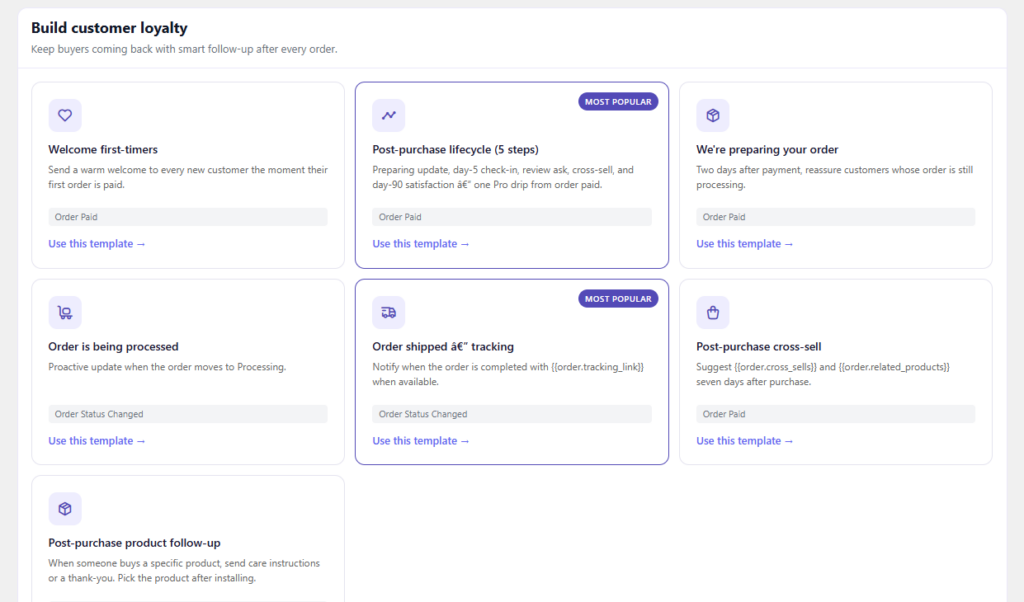
The fastest path: go to CartCue → Browse Templates and install the three ready-made Plays. “We’re preparing your order,” “Order is being processed,” and “Order shipped — tracking.” Each is pre-wired with the right trigger and a starter email.
Prefer to build them yourself? They all follow the same shape. Here’s the “shipped” one step by step; repeat the pattern for the others using the settings in the table further down.
Build the “Shipped” email (step by step)
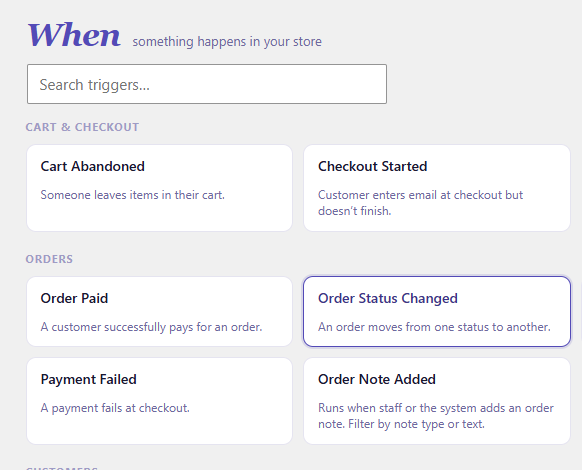
Step 1 – Set the trigger (WHEN): Order Status Changed. Select the Order Status Changed trigger, leave from status blank (any), and set to status to Completed (or your custom “shipped” status).
Step 2 – Keep timing immediate. A shipping notice should go out the moment the status flips — no delay.
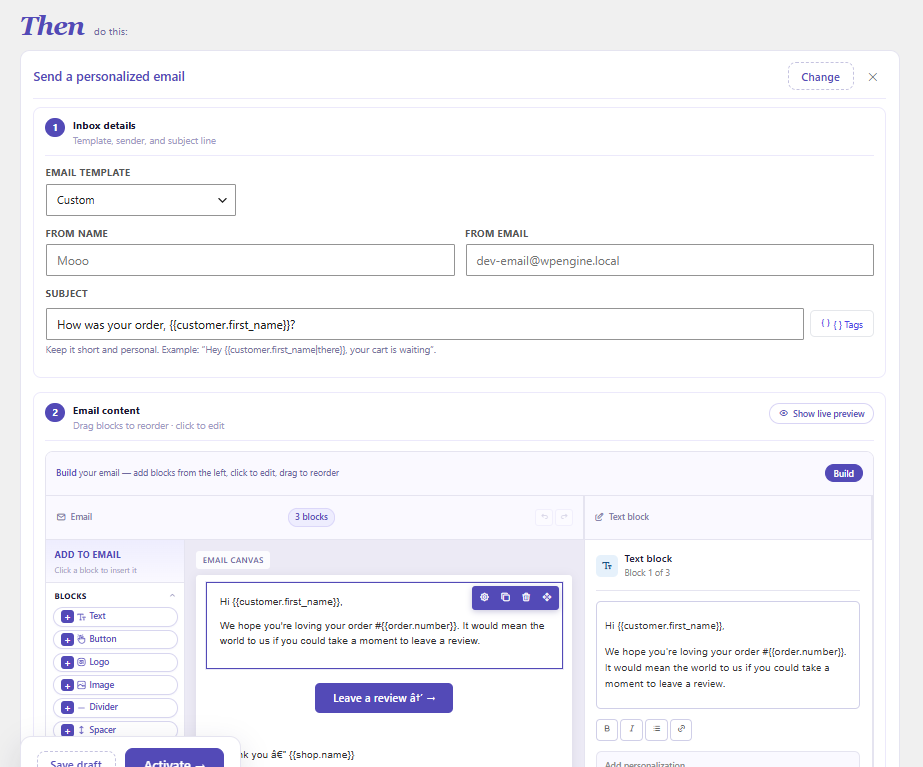
Step 3 – Write the email (THEN): Send Email. Use merge tags so it personalizes itself: {{customer.first_name}}, {{order.number}}, {{order.items}}, {{order.tracking_link}}, {{order.edit_url}}, {{shop.name}}.
Step 4 – Activate. Done. Every order marked Completed now triggers a tracking email automatically.
Copy-paste templates
1. Preparing – Trigger: Order Paid · delay 2 days · only if still Processing · max once per order
Subject: Your order #{{order.number}} is in good hands

Hi {{customer.first_name}},
Just a quick note — we're still preparing order #{{order.number}} and wanted
you to know everything is on track. No action needed; we'll email you when it ships.
— {{shop.name}}
2. Processing – Trigger: Order Status Changed → Processing · immediate
Subject: We're processing your order #{{order.number}}

Hi {{customer.first_name}},
Good news — order #{{order.number}} is now being processed.
{{order.items}}
We'll send tracking as soon as it ships. View your order → {{order.edit_url}}
— {{shop.name}}
3. Shipped – Trigger: Order Status Changed → Completed · immediate
Subject: Your order #{{order.number}} has shipped

Hi {{customer.first_name}},
Your order #{{order.number}} is on its way.
{{order.tracking_link}}
{{order.items}}
View order details → {{order.edit_url}}
— {{shop.name}}
On
{{order.tracking_link}}: it renders a tracking link when one is available on the order (populated by your shipping/tracking plugin). If you don’t store tracking numbers, remove that line or replace it with a link to the customer’s account orders page.
Avoid sending duplicate emails
WooCommerce already sends its own basic emails for some status changes (notably Processing and Completed). If you’d rather send CartCue’s branded versions instead, disable the matching default emails under WooCommerce → Settings → Emails so customers don’t get two messages for the same event.

Tips
- Keep each email to one job. State what happened, show the items, give one link. That’s it.
- Match “shipped” to how you actually work. If Completed means “done, not yet shipped” in your store, target a custom shipped status instead.
- Brand it. These transactional emails get opened almost every time — a tasteful logo and tone build more trust than any marketing blast.
Want to go further? (CartCue Pro)
The email journey above is free. CartCue Pro adds:
- SMS or WhatsApp “shipped” alerts for customers who want texts, not email.
- A Slack ping to your ops channel whenever an order changes status.
- Conditional updates using Pro rules (e.g. a different message for high-value orders).
Frequently asked questions
Does WooCommerce send order status emails by default? Yes, but only basic ones for Processing and Completed, and they’re not customizable per stage. CartCue lets you send branded, proactive updates for any status change — including a “preparing” reassurance email that WooCommerce doesn’t offer.
Is there a “Shipped” status in WooCommerce? Not by default. Most stores treat Completed as shipped, so the shipped email triggers on Completed. If you add a custom shipped status, point the trigger at that status instead.
Will customers get duplicate emails? Only if both WooCommerce’s default email and your CartCue email fire for the same status. Disable the matching default under WooCommerce → Settings → Emails to avoid it.
Is this free? Yes — the Order Status Changed and Order Paid triggers and the email action are all in free CartCue. SMS, Slack, and conditional rules are Pro.
How do I include tracking? Use the {{order.tracking_link}} tag; it shows a tracking link when your shipping plugin has stored one on the order.