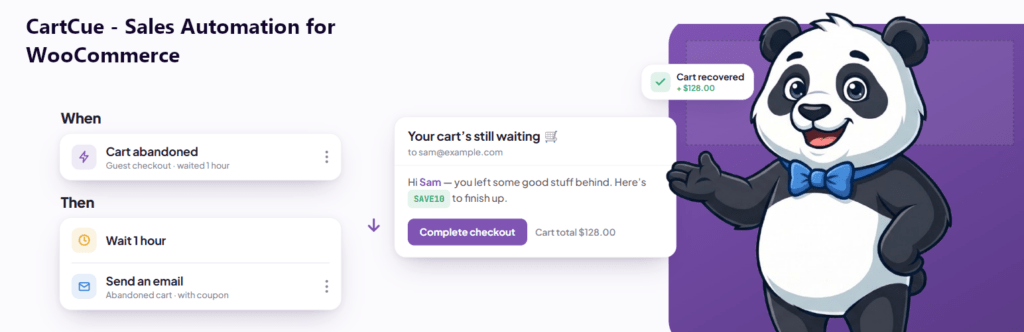
Want every new WooCommerce buyer to land in your CRM automatically with the right tags? Build one automation that fires when someone buys (or registers) and adds them to your email platform, tagged by what they did. With CartCue Pro’s CRM integrations you can sync to Mailchimp, FluentCRM, Klaviyo, ActiveCampaign, or MailPoet without exporting a single CSV.
Your CRM is only as good as the data flowing into it. Manual exports go stale the moment you run them, and missed contacts are missed revenue. A live sync keeps your lists current the instant an order is placed and lets you tag buyers so your campaigns can target them precisely.
What you’ll need (and which plan)
CRM sync is a CartCue Pro feature.
- WooCommerce installed and active.
- CartCue Pro (get it here) – the CRM integration actions are Pro only.
- Your CRM, in one of two flavours:
- Local (no API key): FluentCRM and MailPoet run inside WordPress. If the plugin is installed and active, CartCue detects it,nothing else to connect.
- External (API key required): Mailchimp, ActiveCampaign, and Klaviyo are cloud services. You’ll paste an API key and choose a list/audience.
Step 1 – Connect your CRM in CartCue
Go to CartCue → Settings → Integrations and pick your platform.
- FluentCRM / MailPoet: just confirm it’s detected, no key needed.
- Mailchimp: paste your API key (it ends in a data-center suffix like
-us21) and select your audience. - Klaviyo: paste your private API key and choose a list.
- ActiveCampaign: paste your API key and account API URL, then choose a list.
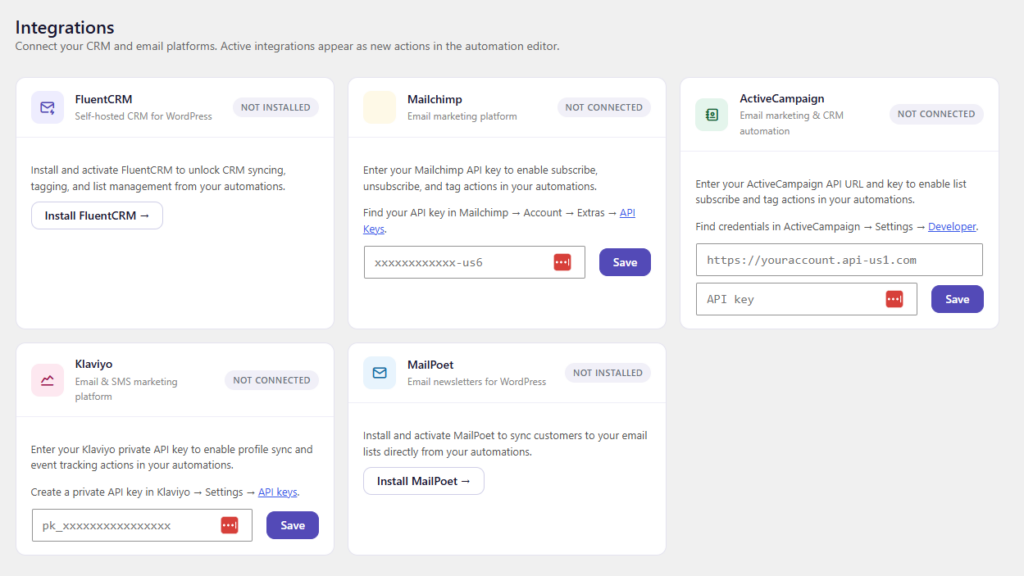
Security tip: treat API keys like passwords, paste them only into your own CartCue settings, never share them, and rotate any key that’s been exposed.
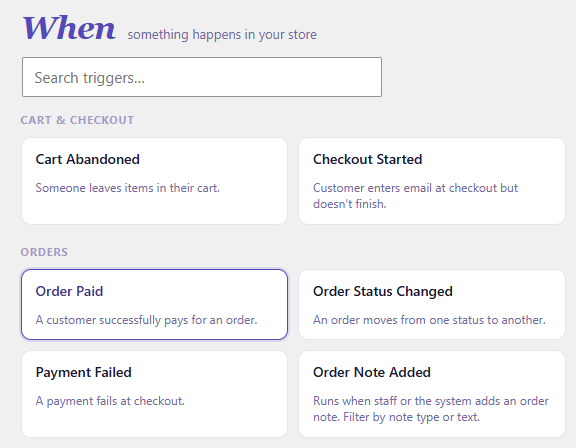
Step 2 – Create the sync Play and pick the trigger (WHEN)
Go to CartCue → Automations → New. Choose a trigger that defines who should be synced:
- New Customer Created – sync everyone who registers an account.
- Order Paid – sync confirmed buyers only (cleaner lists, higher intent).
- Purchased Product / Category – sync buyers of a specific line into a targeted list or segment.
Step 3 – Add the sync action (THEN)
Add the CRM action for your platform:
- Mailchimp: Subscribe to Audience
- FluentCRM: Add Contact
- Klaviyo: Add Profile to List
- ActiveCampaign: Subscribe Contact
- MailPoet: Subscribe
CartCue maps the customer’s email, first name, and last name from the order automatically.
Step 4 – Tag them so your campaigns can target them
This is where a live sync beats a CSV. Add an Add Tag action so each contact arrives pre-labelled, customer, vip, or a product-specific tag like bought-coffee. Mailchimp, FluentCRM, ActiveCampaign, and Klaviyo all support tagging from CartCue. Now your CRM can build segments and flows around real WooCommerce behaviour.
Step 5 – Activate
Turn the Play on. From now on, every customer who matches your trigger is added to your CRM and tagged in real time. Check the Play’s log to confirm syncs are firing.
Common sync recipes
- All buyers → main list, tagged
customer(Trigger: Order Paid → Subscribe → Add Tag). - VIP buyers → VIP segment (add the free Customer Total Spent rule, then tag
vip). - Category buyers → interest segment (Trigger: Purchased Category → Subscribe → Add Tag
coffee). - Registrations → nurture list (Trigger: New Customer Created → Add Contact).
Tips
- Sync buyers, not browsers. Using Order Paid keeps your lists clean and your deliverability high.
- Tag at the source. Tagging on sync is far more reliable than tidying segments later.
- Mind consent. Only sync customers who’ve agreed to marketing – CartCue’s checkout consent capture helps you stay compliant.
- One contact, many tags. Run several Plays against the same list; tags stack to build rich segments.
Frequently asked questions
Which CRMs does CartCue sync with? Mailchimp, FluentCRM, Klaviyo, ActiveCampaign, and MailPoet. FluentCRM and MailPoet run inside WordPress (no API key); Mailchimp, Klaviyo, and ActiveCampaign connect with an API key.
Do I need CartCue Pro for CRM sync? Yes. The CRM integration actions are Pro. The triggers and tagging logic work alongside the rest of CartCue.
Do I need an API key for FluentCRM? No. FluentCRM (and MailPoet) are WordPress plugins, so CartCue talks to them locally once they’re installed and active.
Can I tag contacts based on what they bought? Yes, trigger on Purchased Product or Category and add a matching tag, so your CRM segments mirror real buying behaviour.
Will it sync existing customers or only new ones? The Play syncs customers as they match the trigger going forward (e.g. on their next order). For a one-time backfill of existing customers, run the Play as a campaign against a segment.