Version: 2.0.1
Plugin: Ultimate Member Elementor Pro
Author: UserElements
Requires: WordPress 6.0+, PHP 8.0+, Elementor 3.5.0+ (tested up to Elementor 4.2)
Ultimate Member: Required for UM widgets (WordPress Users widget works without UM)
What this plugin does
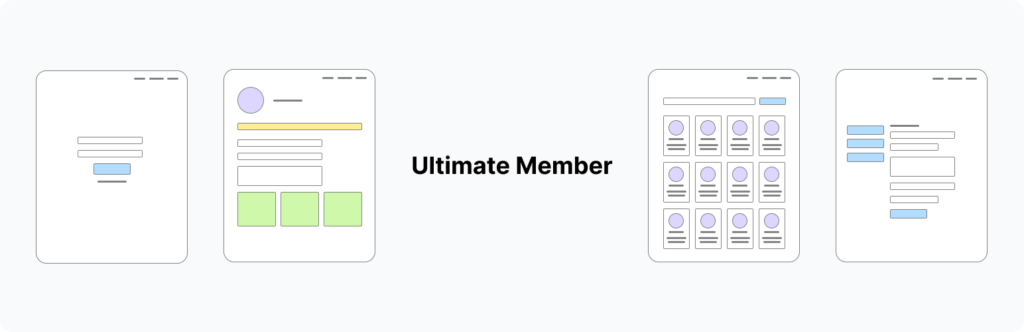
Ultimate Member Elementor Pro lets you design every Ultimate Member page in Elementor — login, register, password reset, account, profile, and member directories — while Ultimate Member continues to handle forms, roles, permissions, and validation.
You get:
- Form & page stylers — wrap UM shortcodes with deep Elementor style controls
- Custom directories — grids, tables, carousels, split view, loop templates, faceted search
- Profile builder — full profile pages, single fields, visibility rules
- Setup wizard & starter templates — one-click layouts with automatic backups
- Elementor Pro Theme Builder — UM page and profile tab conditions
- UM Dynamic Tags — member fields in Loop Item templates
Capture: Elementor editor with the widget panel open, showing all four UM categories (UM Core Pages, Directory Layouts, Directory Tools, Profile Fields) and a styled member directory on the canvas.
Requirements & compatibility
| Requirement | Details |
|---|---|
| WordPress | 6.0+ (tested up to 6.9) |
| PHP | 8.0+ |
| Elementor | 3.5.0 minimum; tested up to 4.2.0 |
| Ultimate Member | Required for UM-specific widgets and AJAX endpoints |
| Elementor Pro | Optional — needed for Loop Item templates, Theme Builder conditions, and some loop-grid workflows |
Important: Do not run the free “UM Elementor” plugin alongside Pro. Pro replaces Free and auto-deactivates it on activation. Both share the same PHP classes and will conflict.
Installation
- Install and activate Elementor.
- Install and activate Ultimate Member (for UM features).
- Upload and activate Ultimate Member Elementor Pro.
- On first activation, the Setup Wizard opens automatically (or go to Settings → Member Pages, also under Ultimate Member → Member Pages).
- Assign UM core pages in Ultimate Member → Settings → General → Pages if not already set.
- Apply starter templates per page, then fine-tune in Elementor.
Capture: Setup Wizard “Requirements” step showing Ultimate Member, Elementor, and core page assignment checklist.
Capture: Settings → Member Pages with page status cards (Login, Register, Profile, Account, Password Reset, Members Directory), progress ring, and starter template buttons.
Admin settings
Member Pages dashboard
Location: Settings → Member Pages or Ultimate Member → Member Pages
- Status for each UM core page (Elementor-built, shortcode-only, missing widget, etc.)
- Quick actions: Edit with Elementor, apply starter template, restore layout backup
- Directory layout guide cards
- Link to run Setup Wizard again
Setup Wizard (3 steps)
- Requirements — UM, Elementor, core pages assigned
- Design your pages — apply starter templates per page
- Finish — summary and next steps
Advanced setting
High-performance queries (on by default): Uses the new query engine for member directories. Turn off only if a directory stopped matching results after an update — it falls back to the legacy query path.
Capture: “High-performance queries” checkbox at the bottom of the Member Pages screen.
Starter templates (bundled)
Applied from Member Pages or Setup Wizard. Previous Elementor layout is backed up automatically and can be restored.
| Template | Target page | Description |
|---|---|---|
| Login — Centered Card | Login | Centered login with welcome heading |
| Register — Centered | Register | Centered registration layout |
| Password Reset — Centered | Password Reset | Centered reset form |
| Member Directory — Card Grid | Members | 3-column AJAX card grid + search |
| Member Directory — Table | Members | Sortable DataTables layout |
| Directory — Split View | Members (or custom page) | List + inline profile panel |
| Profile — Sidebar | User Profile | Sidebar profile with Profile Page Builder |
| Account — Styled | Account | Styled UM account tabs |
Capture: Starter template card on Member Pages with “Apply template” and “Restore backup” buttons visible.
Widget categories in Elementor
Widgets appear under four Elementor panel categories:
| Category | Purpose |
|---|---|
| UM Core Pages | Login, register, account, profile, password reset, logout, UM native directory styler, visibility container |
| Directory Layouts | Grid, split view, loop grid, carousel, flip cards, table, card grid, WordPress users |
| Directory Tools | Search, filters, faceted search, alphabet index |
| Profile Fields | Single field, profile fields list, profile photo |
UM Core Pages widgets
1. Login / Register Form
Use for: UM login or registration pages (or embedded forms on any page).
Key controls:
- Form type: Login or Registration
- Form selection: site default or specific UM form
- Redirect after login / registration (optional URL)
- Field Layout — column widths (full, half, 1/3, 2/3), reorder, hide labels, gap
- Per-field styling — label, input, background, border per metakey
- Full style tab: wrapper, inputs, buttons, notices, links, remember-me, etc.
Use cases: Branded login page; split login/register tabs on one page; multi-column registration with custom field widths.
Note: Fields and validation stay in Ultimate Member → Forms. Elementor only styles and lays out what UM renders.
Capture: Styled login form on frontend + Elementor panel showing Field Layout controls.
2. User Profile (Profile Page Builder)
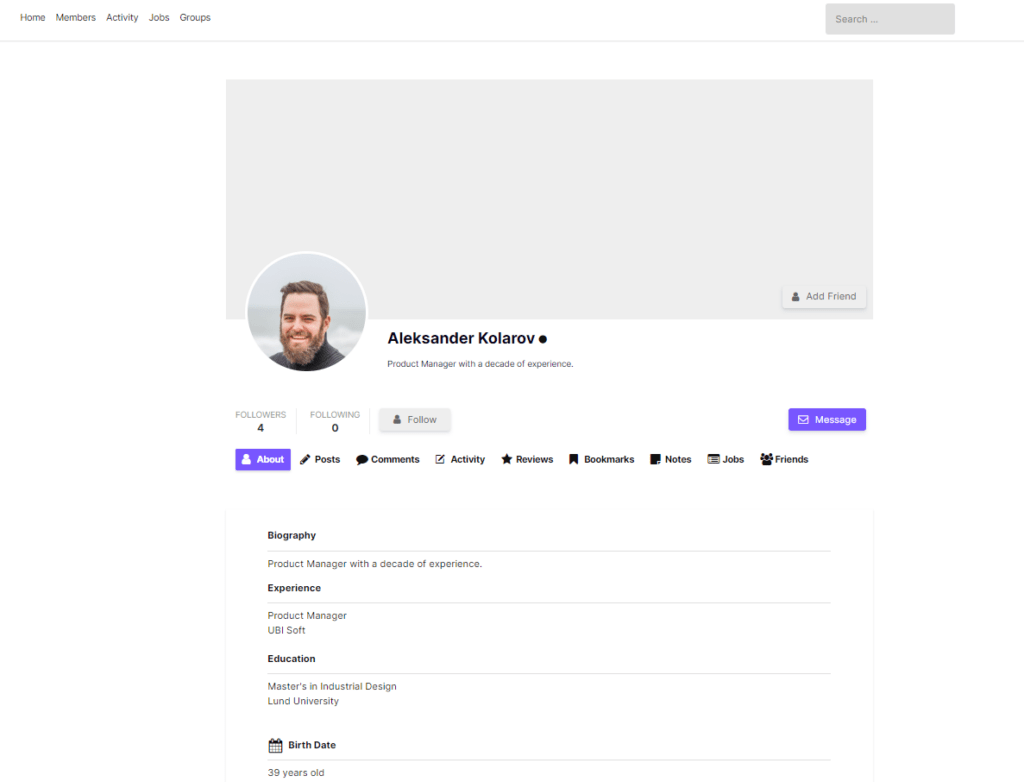
Use for: UM User Profile page — replaces default UM cover/header when this widget is present.
Key controls:
- Profile form source (default or pick form)
- Cover photo, avatar, tabs, fields — extensive style controls mapped to real UM DOM classes
- Optional widget-level form settings (role-specific forms, max width, field icons, etc.)
- Editor preview user for design-time preview
Use cases: Custom cover hero profile; minimal profile without UM default header; role-specific profile layouts.
Capture: Full profile page with cover, avatar, tabs, and styled fields on the frontend.
3. Account
Use for: UM Account page — styles tabs, fields, save buttons, delete account link, notifications.
Use cases: Sidebar account navigation; branded account settings matching site design.
4. Password Reset
Use for: UM password reset page (ultimatemember_password shortcode).
5. Member Directory (UM Directory Styler)
Use for: Styling UM’s native member directory shortcode on the Members page.
Not the same as Directory Grid: Directory fields, filters, and sort options are managed in Ultimate Member → Member Directories. This widget styles UM’s output.
Use when: You want UM’s built-in directory AJAX, filters, and privacy rules without rebuilding the directory in Elementor.
6. Logout
Use for: Logout link/button in headers, menus, or Theme Builder templates.
Uses UM logout page when configured.
7. UM Visibility (container)
Use for: Show/hide nested Elementor content based on UM rules.
Requires: Elementor “Nested Elements” experiment enabled.
Rules: Logged in, logged out, profile owner, visitor, UM role, account approved/pending/rejected.
Use cases: “Edit profile” button only for profile owner; member-only promo blocks; pending-approval notice for unapproved users.
Capture: UM Visibility widget in editor with nested container and visibility rule dropdown.
Directory Layouts widgets
Most directory widgets share a Who to Show section:
- Show only approved users
- UM directory privacy (optional
um_directorypost ID for AJAX privacy) - Filter by role
- Number of members (up to 1000)
- Order by (display name, registration date, last login, custom meta, etc.)
1. Directory Grid
Primary custom Elementor directory. AJAX member cards on any page.
- Card styles: Card, List, Custom Template (Elementor template per card)
- Responsive columns (1–6)
- Pagination / load more
- Built-in or linked search/filter
- Profile info fields on each card
Pair with: Directory Search, Directory Filters, Alphabet Index (Control only mode).
Capture: 3-column member card grid with avatars, names, and meta fields on a Members page.
2. Split View
Browse members in a compact list; load profile details in an AJAX side panel without leaving the page.
- Adjustable list width (%)
- Mobile: slide-over drawer or stacked layout
- Auto-select first member
- Detail panel: cover, role badge, optional UM profile form fields
- Pagination; links to Search/Filter widgets
Use cases: Staff directory; association member browser; CRM-style member lookup.
Capture: Desktop split view with member list on left and profile detail panel on right.
3. Loop Grid
Render members using an Elementor Loop Item template + UM Dynamic Tags.
- Design one card in Loop Builder; widget repeats it per member
- AJAX pagination
- Best for designers who want full Elementor freedom on each card
Requires: Elementor Pro Loop Item template.
4. WordPress Users
Member card grid for native WordPress users — works without Ultimate Member.
Use cases: Author/staff directories; sites using UM only for registration but WP users for display.
5. Carousel
Swiper-based slider — card or cover styles, autoplay, loop, responsive slides per view.
Use cases: Featured members on homepage; team spotlight slider.
6. Flip Cards
Hover-to-flip cards with front and back field sets.
Use cases: Team pages with “fun fact” on back; skills summary on flip.
7. Table
DataTables-powered sortable table with AJAX search, column sorting, and CSV export.
- Configurable columns from UM meta fields
- Link fields to profile pages
- Custom column labels
Use cases: Sortable member roster; exportable contact lists for admins.
Capture: Sortable table with column headers, search box, and export button.
8. Card Grid (multi-column)
Editorial layouts: two-column, three-column, or zigzag card rows with full style control per column.
Use cases: Magazine-style member showcases; alternating image/text rows.
Directory Tools widgets
Directory linking pattern
Search, Filters, and Alphabet Index can run in two modes:
- Standalone — widget shows its own results
- Control only — drives a linked Directory Grid or Split View via AJAX (recommended for split layouts)
Set Target Grid Widget ID to link a specific directory, or leave empty to auto-link to the first grid/split view on the page.
Capture: Page layout with Directory Search + Directory Filters above Directory Grid; show “Control only” mode in filter widget settings.
1. Directory Search
- Live AJAX search bar
- Searchable fields: display name, first/last name (public name search), username, email (privileged), custom meta
- Placeholder text configurable
2. Directory Filters
- Dropdown, checkbox, radio filters
- AJAX refresh of linked directory
- Filter by UM user meta fields
3. Faceted Search
Full faceted directory with live counts — filter by multiple meta fields at once.
- Layouts: sidebar left, sidebar right, horizontal top bar
- UI types per facet: checkbox, radio, dropdown, tag cloud, numeric range, date range
- Includes member results area (not just a control widget)
Use cases: Job board-style member search; filter by country + industry + experience range.
Capture: Faceted sidebar with checkbox facets showing live counts + results grid.
4. Alphabet Index
A–Z letter bar to browse members by name (display name, first name, last name, or username).
- Links to Directory Grid or Split View
- Optional “All” and “#” (non-letter names)
Use cases: Alumni directory; medical staff A–Z browser; association member lookup.
Profile Fields widgets
Use on UM profile pages or in Theme Builder profile templates. Support preview user in editor.
Single Profile Field
One field: profile photo, display name, or any UM meta field. Includes UM Visibility rules on Advanced tab.
Profile Fields
Repeater of selected UM profile fields with labels, icons, and typography controls.
Profile Photo
Standalone avatar with size, border, shadow, and link-to-profile options.
Capture: Elementor-built profile using Profile Photo + Profile Fields + UM Visibility blocks (not the full User Profile widget).
UM Dynamic Tags (Elementor)
Available when editing Loop Item templates or any Elementor design with dynamic data:
| Tag | Use |
|---|---|
| UM User Field | Any UM meta or core field (display name, email, custom fields) |
| UM Profile Photo | Image control — member avatar |
| UM Profile Photo URL | URL control — avatar URL for backgrounds/links |
| UM Profile URL | Link to member’s UM profile page |
In Loop Grid, each card resolves tags for the current member in the loop (same behavior as native Loop Builder for posts).
Capture: Loop Item template with UM User Field and Profile Photo dynamic tags applied to heading and image widgets.
Elementor Pro Theme Builder conditions
When Elementor Pro is active, UM adds Theme Builder display conditions:
Under Singular → Ultimate Member
- All UM pages
- Login, Register, User Profile, Account, Password Reset, Members Directory (per core page)
- Profile tab (any or specific tab)
General conditions
- UM profile owner — logged-in user viewing their own profile
- UM profile visitor — viewing someone else’s profile
Use cases: Custom header on login only; “Edit profile” bar for profile owner; different profile tab templates per tab.
Capture: Elementor Theme Builder condition picker showing Ultimate Member group and profile tab sub-conditions.
UM Visibility rules (widgets & containers)
Available on Logout, Single Profile Field, and UM Visibility container. On other widgets: Advanced tab → UM Visibility.
| Rule | When content shows |
|---|---|
| Always | No restriction |
| User is logged in | Authenticated visitors |
| User is logged out | Guests only |
| Profile owner is viewing | Member viewing their own profile |
| Viewer is not the profile owner | Someone else’s profile |
| User has UM role | Specific UM role selected |
| Account is approved / pending / rejected | UM account status |
Recommended page → widget mapping
| UM core page | Recommended widget | Alternative |
|---|---|---|
| Login | Login / Register Form (Login) | Starter: Login — Centered Card |
| Register | Login / Register Form (Register) | Starter: Register — Centered |
| User Profile | User Profile | Profile Fields + Profile Photo (custom layout) |
| Account | Account | Starter: Account — Styled |
| Password Reset | Password Reset | Starter: Password Reset — Centered |
| Members Directory | Member Directory (native UM) | Directory Grid + Search/Filter (custom) |
Use case scenarios
Scenario A — Quick launch (non-technical site owner)
- Activate plugin → complete Setup Wizard
- Apply starter templates for login, register, profile, account, members
- Open each page in Elementor and tweak colors/fonts to match brand
- Publish
Scenario B — Custom member directory on a landing page
- Create new Elementor page (not necessarily UM Members page)
- Add Directory Search (Control only) + Directory Filters (Control only)
- Add Directory Grid below (3 columns, Card style, pagination on)
- Configure Who to Show: approved users only, role filter if needed
- Optional: Alphabet Index above search for A–Z browsing
Scenario C — Association / alumni directory with facets
- Add Faceted Search widget
- Add facets: Country (checkbox), Industry (dropdown), Years of experience (numeric range)
- Set sidebar layout; enable live counts
- Style facet labels and result cards in Elementor
Scenario D — Staff browser (split view)
- Apply Directory — Split View starter template or add Split View widget manually
- Configure list summary fields (name, role, department)
- Configure detail panel fields (bio, email, social links)
- Set mobile behavior to drawer
Scenario E — Fully custom profile (Theme Builder)
- Create Elementor Pro Theme Builder template: condition = User Profile
- Build layout with Profile Photo, Profile Fields, UM Visibility blocks
- Add condition UM profile owner template for edit controls
- Add visitor template with limited fields for public view
Scenario F — WordPress authors only (no UM)
- Keep Ultimate Member inactive (or use UM only for registration)
- Add WordPress Users widget
- Filter by author role; show post count or custom meta
Scenario G — Branded login with multi-column registration
- Login / Register Form on register page, form type = Registration
- Field Layout: set half-width for name fields, full width for email
- Per-field styling for highlight color on email field
- Redirect after registration to account or welcome page
Free → Pro migration
On Pro activation:
- Free “UM Elementor” plugin is auto-deactivated
- Widget IDs in existing Elementor layouts are migrated (login styler, table, carousel, profile builder placeholders, etc.)
- Admin notice prompts review of affected pages on Member Pages dashboard
Do not activate both plugins.
Troubleshooting & FAQ
Directory shows wrong members or empty after update
Go to Member Pages → Advanced → disable High-performance queries, clear cache, test. Re-enable if legacy path fixes it and contact support.
UM Visibility container not in widget panel
Enable Elementor → Settings → Features → Nested Elements.
Search doesn’t find members by real name
In Directory Search, enable first name / last name in searchable profile info fields.
Table only shows 100 members
Set Number of Members in Who to Show (up to 1000). Table paginates in the UI from the full pool.
Shortcode still showing on Elementor page
Replace [ultimatemember] shortcode with the matching UM widget (Login/Register Form, User Profile, Account, etc.). Editor shows a canvas notice when shortcodes are detected.
Loop Grid tags show wrong user
Ensure you’re using UM Dynamic Tags (not WordPress user tags) inside the Loop Item template linked to Loop Grid.
Elementor version warning
Minimum Elementor 3.5.0. Update Elementor if admin notice appears.
Support & resources
- Member Pages dashboard: Settings → Member Pages
- Documentation: userelements.com/docs
- Support: userelements.com/support
- Login page guide: Login in Elementor
- Directory guide: Create user directory
- Demo: demo.userelements.com