Plugin: UM Export (Free) / UM Export Pro
Applies to: Pro 1.5.5 · Free 1.0.9
What you can export
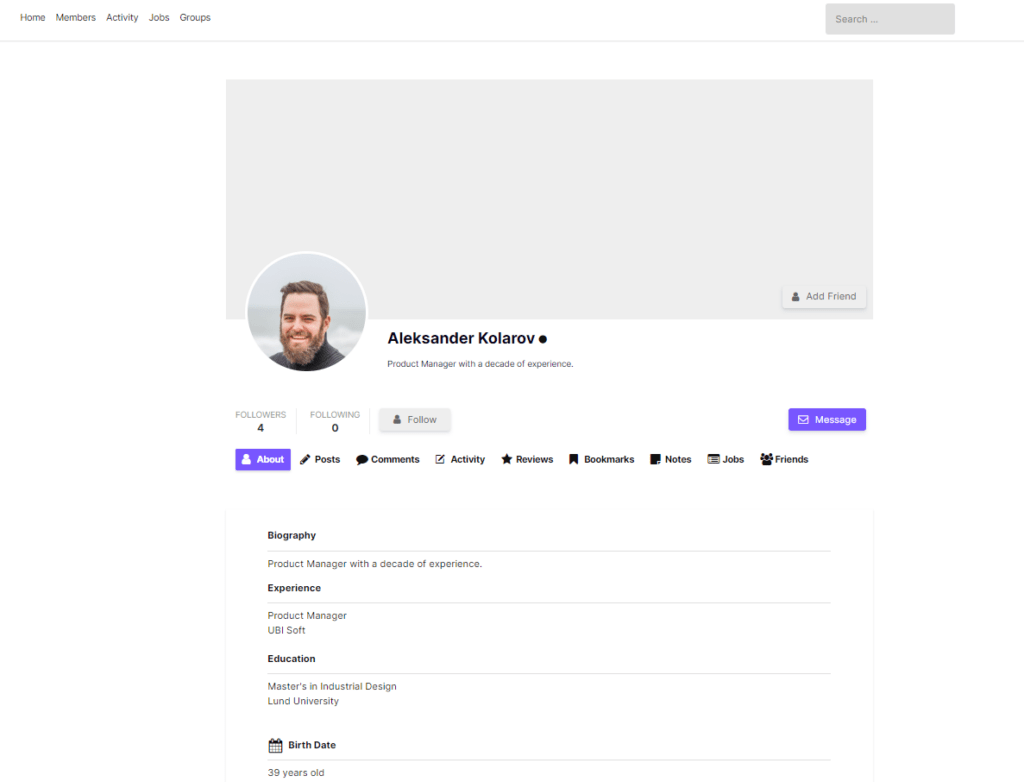
Ultimate Member stores profile and cover images as user media — not plain URLs in the database. UM Export resolves those fields into usable output so you can:
- Get a spreadsheet of members with profile photo URLs
- Include cover photo URLs (Pro)
- Download a ZIP containing the spreadsheet plus the actual image files (Pro)
Free vs Pro — what you need
| Goal | Free | Pro |
|---|---|---|
| Export profile photo URLs in CSV | Yes | Yes |
| Export cover photo URLs | No | Yes |
| Choose media mode: URLs / raw values / ZIP files | No (URLs only) | Yes |
| ZIP bundle with image files on disk | No | Yes |
| Export custom UM image/file upload fields | Limited (as meta) | Yes — resolved like profile/cover |
| Excel (.xlsx) + background export for large sites | No (CSV, max 2,000 rows) | Yes (unlimited + background jobs) |
Short answer:
- Need profile photo links in a CSV for a few thousand members or fewer → Free is enough
- Need cover photos, ZIP downloads of the actual files, Excel, or large/background exports → Pro is required
How it works
UM typically stores a filename (or related meta) for photos. UM Export Pro’s media resolver turns that into:
- URLs mode (recommended) — public or downloadable links using Ultimate Member helpers (e.g. avatar URL / cover URI)
- Raw mode — the stored filename or attachment ID, as saved in user meta
- ZIP mode — copies resolvable files into
media/{user_id}/{field}/inside a ZIP, and writes relative paths in the spreadsheet
The same modes also apply to Ultimate Member custom image and file form fields when those columns are selected.
Export profile photo URLs (Free or Pro)
Free
- Go to Ultimate Member → Export.
- Step 1: set any filters you need (role, status, registration date), or leave them open for all members.
- Step 2: under Basic details, check Profile Photo. Also select Email / Name / ID so you can match rows later.
- Step 3: Download CSV.
Each row’s Profile Photo column will contain a resolved avatar URL when Ultimate Member can provide one.
Limits: Free exports up to 2,000 members per run and CSV only. Narrow filters if you hit the cap, or upgrade to Pro.
Pro
- Go to UM Export → Export.
- Step 1: choose filters (optional).
- Step 2: check Profile Photo (URL) under Basic Details. Optionally add Cover Photo and any custom image/file fields.
- Step 3: under Profile media & file fields, leave Export file URLs (recommended) selected.
- Choose CSV or Excel → Download now, or queue a background export for large lists.
📸 Screenshot — Columns
Step 2 with Profile Photo (and Cover Photo on Pro) checked, plus Email/Name selected.
Export cover photos (Pro only)
- Open UM Export → Export.
- Step 2: enable Cover Photo (URL).
- Step 3: keep media mode on Export file URLs.
- Download CSV/Excel or run in the background.
Cover photo is not available in the Free column list. Upgrade to Pro if you need cover images in the export.
Download photos as a ZIP (Pro only)
Use this when you need the actual image files (migration, offline archive, design handoff) — not just links.
- Step 2: select Profile Photo, Cover Photo, and any other UM image/file fields you want bundled.
- Step 3 → Profile media & file fields → choose ZIP bundle.
- Run Download now or Background export (recommended for large member bases).
What’s inside the ZIP:
- Your spreadsheet (CSV or XLSX)
- Files under paths like
media/123/profile_photo/avatar.jpg - Spreadsheet cells for those fields contain the relative path into the ZIP (not a live URL)
📸 Screenshot — Media mode
Step 3 showing the three radios: Export file URLs / Raw stored values / ZIP bundle, with ZIP selected.
Tips:
- Prefer Background export when exporting thousands of members with ZIP — packing files takes longer than a URL-only CSV.
- Members without an uploaded photo simply have empty cells / no file folder for that field.
- Raw mode is mainly for debugging or re-import tooling; use URLs or ZIP for day-to-day work.
Suggested column sets
Directory / CRM sync (links only):
ID, Email, Name, Profile Photo (URL), Cover Photo (URL)
Offsite media backup (ZIP):
ID, Email, Username, Profile Photo, Cover Photo + any custom image/file fields · media mode = ZIP
Ads / email tools:
Usually you do not need photo columns — use Email (+ Hash PII on Pro if uploading to ad platforms).
Common questions
Why is a profile photo cell empty?
The member has no uploaded avatar, or Ultimate Member couldn’t resolve a URL for that account. Confirm the photo appears on their UM profile first.
Can I re-import profile photos from this export?
Profile Photo is treated as a display/export field, not a standard import target. Use URL or ZIP exports for listing and backup; photo re-upload into UM is a separate workflow.
Do Gravatar-only users export a URL?
If Ultimate Member’s avatar helper returns a URL (including default/Gravatar-style URLs depending on your UM settings), that URL is what appears in URLs mode. ZIP mode only packs files that exist on disk for that user.
Free hit the 2,000-row limit
Narrow filters (e.g. Approved + last 90 days) or upgrade to Pro for unlimited and background exports.
Quick decision
| You want… | Use |
|---|---|
| Profile photo links in CSV | Free or Pro |
| Cover photo links | Pro |
| Actual image files in a ZIP | Pro |
| 5,000+ members / Excel / email when ready | Pro |
Upgrade: UM Export Pro