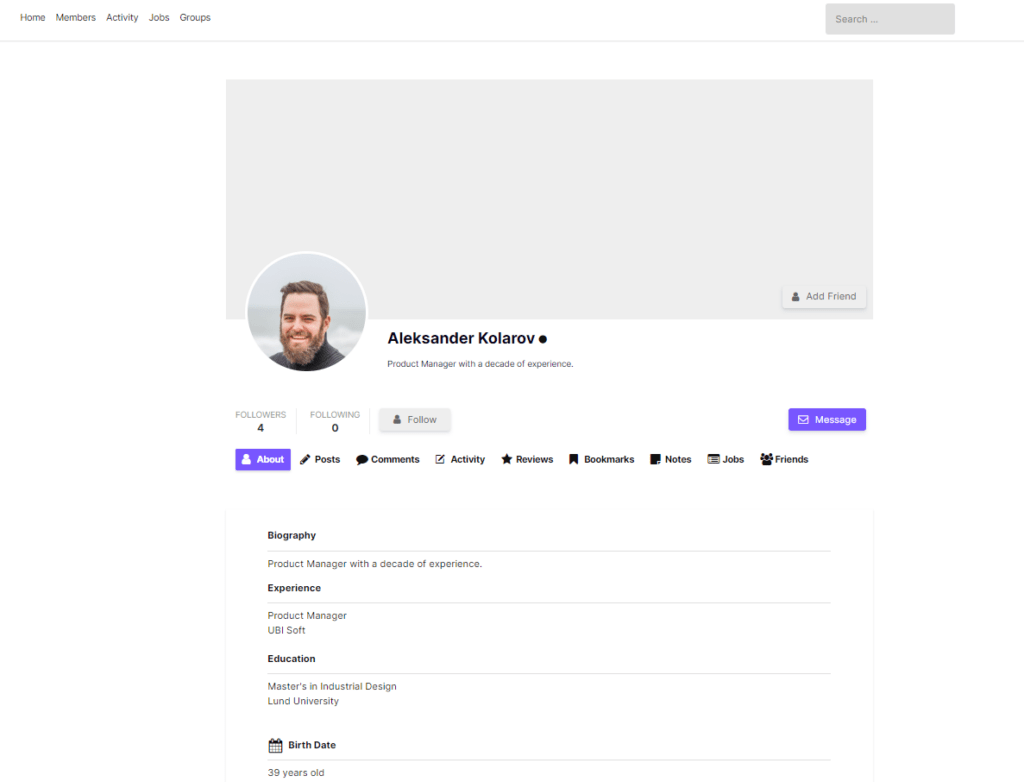
URL columns are fine for directories and CRM sync. When you need the actual files — profile photos, cover photos, and Ultimate Member image/file uploads — use Pro’s ZIP bundle media mode.
The ZIP contains your spreadsheet plus copied files under media/{user_id}/{field}/, with relative paths written in the sheet.
Free vs Pro
| Capability | Free | Pro |
|---|---|---|
| Profile photo URLs in CSV | Yes | Yes |
| Cover photo column | No | Yes |
| Media modes: URLs / raw / ZIP | No | Yes — required |
| Bundle custom UM image/file fields | No | Yes |
| Background export for large ZIPs | No | Yes |
Pro is required for ZIP downloads. Free can only export profile photo URLs.
How to create a media ZIP
- Go to UM Export → Export.
- Step 1: set filters (optional) so you only include the members you need.
- Step 2: select media columns:
- Profile Photo (URL)
- Cover Photo (URL)
- Any custom UM image / file fields
- Step 3 → Profile media & file fields → choose ZIP bundle.
- Download now, or use Background export for large member bases.
📸 Screenshot
Step 3 with “ZIP bundle” selected and Profile/Cover columns listed in the summary.
What’s inside the ZIP
- Spreadsheet (CSV or .xlsx)
- Files like
media/42/profile_photo/avatar.jpg - Sheet cells for those fields show the relative path inside the ZIP (not a live URL)
Members without an uploaded file for a field simply have an empty cell / no file for that path.
Tips
- Prefer Background export when packing thousands of images.
- Use URLs mode instead when you only need links.
- Use Raw mode only for debugging stored filenames/IDs.
- ZIP mode is for backup/migration handoff — Profile Photo is not a standard re-import target.
Get ZIP media export: UM Export Pro