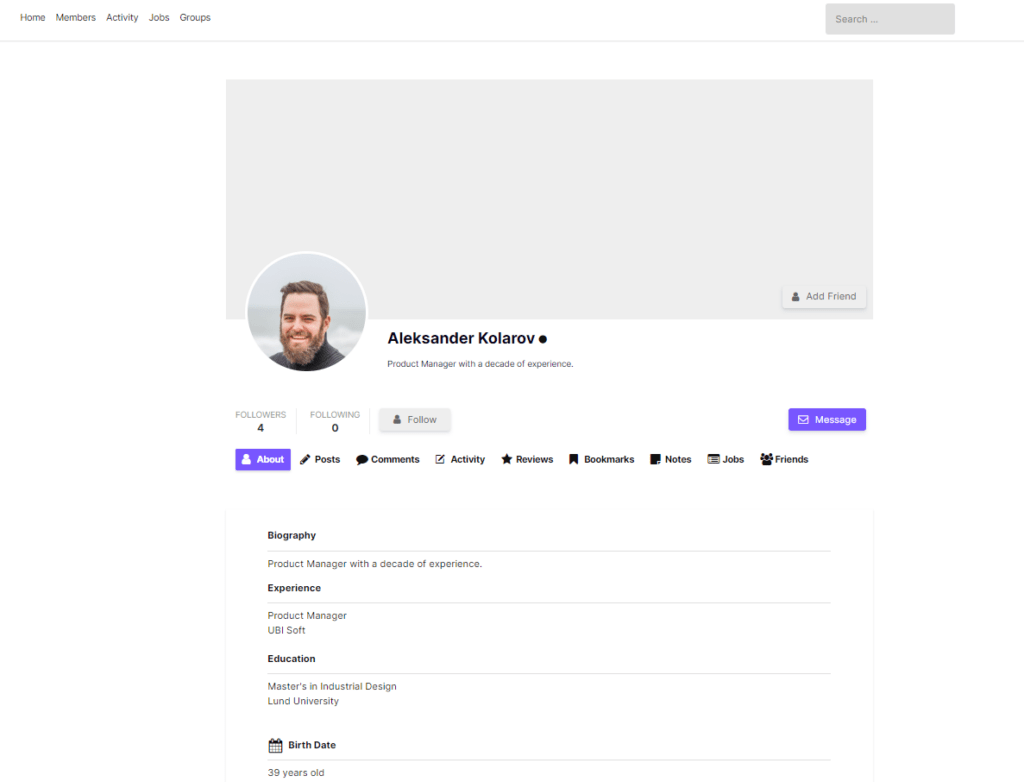
This is a complete, source-verified reference for every Ultimate Member shortcode. Every parameter and default value below is pulled directly from the plugin source code, not guessed or copied from older docs. So it reflects how the shortcodes actually behave. Ultimate Member registers 12 shortcodes across its core plugin; each one is documented here with its accepted parameters and working, copy-paste examples.
Last verified against Ultimate Member 2.11.4.
If you need to understand where Ultimate Member stores user data before working with shortcodes that display it, see Where and How Ultimate Member Stores User Data in WordPress.
Quick navigation:
- [ultimatemember] — Universal form shortcode
- [ultimatemember_login] — Default login form
- [ultimatemember_register] — Default register form
- [ultimatemember_profile] — Default profile form
- [ultimatemember_directory] — Default member directory
- [ultimatemember_account] — Account page with tabs
- [ultimatemember_password] — Password reset
- [ultimatemember_searchform] — Member search form
- [um_loggedin] — Logged-in only content
- [um_loggedout] — Logged-out only content
- [um_show_content] — Role-specific content
- [um_author_profile_link] — User profile URL
Ultimate Member Shortcodes at a Glance
Quick reference for every core Ultimate Member shortcode, its key parameter, and a copy-paste example. Full details for each are further down.
| Shortcode | Key parameter | Example |
|---|---|---|
[ultimatemember] | form_id (required) | [ultimatemember form_id="1"] |
| Member directory | form_id | [ultimatemember form_id="1"] |
[ultimatemember_login] | none | [ultimatemember_login] |
[ultimatemember_register] | none | [ultimatemember_register] |
[ultimatemember_profile] | none | [ultimatemember_profile] |
[ultimatemember_directory] | none (loads default) | [ultimatemember_directory] |
[ultimatemember_account] | tab | [ultimatemember_account tab="password"] |
[ultimatemember_password] | none | [ultimatemember_password] |
[ultimatemember_searchform] | none | [ultimatemember_searchform] |
[um_loggedin] | show_lock | [um_loggedin]…[/um_loggedin] |
[um_loggedout] | none | [um_loggedout]…[/um_loggedout] |
[um_show_content] | roles | [um_show_content roles="member"]… |
[um_author_profile_link] | user_id | [um_author_profile_link user_id="29"]… |
[ultimatemember] – Universal Form Shortcode
The core shortcode. Depending on the form_id you pass, it renders a login form, register form, profile form, or member directory. Every UM form and directory has a unique form_id.
[ultimatemember form_id="123"]| Parameter | Default | Description |
|---|---|---|
form_id | '' | The post ID of the UM form or directory to render (required) |
is_block | false | Internal flag used by the block editor integration |
Where to find your form ID:
Go to Ultimate Member → Forms. The ID appears in the shortcode column on the list screen, and in the URL when you edit a form (post=123). For directories, go to Ultimate Member → Member Directories.
How it behaves by mode:
- Login form: If a logged-in user visits a login page, they see a logout form automatically.
- Register form: If a logged-in user visits the register page, the output is “You are already registered.” (filterable via
um_registration_for_loggedin_users). - Profile form: Requires a valid user URL context (
/user/username/) to know which profile to display. - Directory: Checks directory privacy settings before rendering – returns empty if the current user cannot view it.
Examples:
[ultimatemember form_id="1"]
[ultimatemember form_id="42"]
[ultimatemember_login] – Default Login Form
A convenience shortcode that automatically loads whichever login form is marked as the default in your site. No parameters required.
[ultimatemember_login]Internally, this queries for the login form with _um_is_default = 1 and passes its ID to [ultimatemember form_id="X"]. Use [ultimatemember form_id="X"] directly if you want a specific non-default login form.
[ultimatemember_register] – Default Register Form
Loads the default registration form automatically. No parameters required.
[ultimatemember_register]Works the same way as [ultimatemember_login] – queries for the register form marked as default. To use a specific non-default registration form, use [ultimatemember form_id="X"].
[ultimatemember_profile] – Default Profile Form
Renders the default user profile form. This shortcode is placed on your designated User page (set in Ultimate Member → Settings → Pages → User page).
[ultimatemember_profile]Important: According to the official documentation and enforced in the source, the profile shortcode must be placed on the User page only. It cannot be reliably used on other pages because it depends on the URL context (/user/username/) to determine which user’s profile to display.
Profile URLs follow the pattern:
https://yoursite.com/user/username/To use a specific profile form (e.g., a role-specific one), use [ultimatemember form_id=”X”] with the profile form’s ID.
[ultimatemember_directory id=”X”] — Directory Shortcode with ID
If you searched for [ultimatemember_directory id="1"] or the directory shortcode with an id or form_id parameter, here is the direct answer.
To display a specific member directory by its ID, use the universal form shortcode with the directory’s post ID:
[ultimatemember form_id="1"]This is the exact shortcode Ultimate Member shows you under Ultimate Member → Member Directories → Shortcode column. Copy it from there and it will always load the directory you intend.
About
[ultimatemember_directory id="X"]: You will see thisid-style format in some third-party guides, and older Ultimate Member builds accepted aform_idattribute on the[ultimatemember_directory]shortcode. In current Ultimate Member, the canonical, future-proof way to target a directory by ID is[ultimatemember form_id="X"]— that is what the plugin itself generates. If you paste[ultimatemember_directory id="1"]and it loads the wrong directory or ignores the ID, switch to[ultimatemember form_id="1"].
How to find your directory form_id
The form_id (the directory’s post ID) is shown in two places:
- Go to Ultimate Member → Member Directories. The ready-to-use shortcode —
[ultimatemember form_id="X"]— appears in the Shortcode column next to each directory. - Or click Edit on the directory and read the ID from the browser URL:
post=1means yourform_idis1.
ultimatemember_directory id example
Display the directory whose ID is 1:
[ultimatemember form_id="1"]Display a second directory with ID 42 on a different page:
[ultimatemember form_id="42"]Embed a directory and a search box together on the same page:
[ultimatemember_searchform]
[ultimatemember form_id="1"]
[ultimatemember_directory] – Default Member Directory
Loads the default member directory automatically. No parameters required.
[ultimatemember_directory]To use a specific directory, use [ultimatemember form_id="X"] with the directory’s ID from Ultimate Member → Member Directories.
Important: The Ultimate Member admin UI never displays this shortcode. The Member Directories screen always shows [ultimatemember form_id=”X”] with the directory’s specific ID — and that is the shortcode you should copy and use. The [ultimatemember_directory] shortcode is a convenience alias that only works as expected if the directory you want is set as the default. If a site has multiple directories and the one you want is not marked as default, [ultimatemember_directory] will load the wrong one.
Use this shortcode: [ultimatemember form_id=”X”] — copy it directly from Ultimate Member → Member Directories → Shortcode column. This always refers to the exact directory you intend, regardless of which is set as default.
[ultimatemember_account] – Account Page
Renders the Ultimate Member account page. Contains four built-in tabs, with a fifth (Delete Account) shown conditionally based on role permissions.
[ultimatemember_account]Important: This shortcode must be placed on the Account page set in Ultimate Member → Settings → Pages → Account page. It cannot be used reliably on other pages.
| Parameter | Default | Description |
|---|---|---|
tab | '' (opens general) | Which tab to show on load |
template | 'account' | Template slug (advanced – do not change unless overriding templates) |
mode | 'account' | Form mode (internal) |
form_id | 'um_account_id' | Internal form identifier |
Account tab slugs
tab value | Tab title | What it contains |
|---|---|---|
general | Account | Edit profile fields (email, display name, custom fields) |
password | Change Password | Current password + new password form |
privacy | Privacy | Profile visibility, search engine indexing, hide from directory |
notifications | Notifications | Email notification preferences (requires extensions to be useful) |
delete | Delete Account | Account deletion – only shown when the user’s role allows profile deletion |
Examples
Default account page (opens General tab):
[ultimatemember_account]Force open the Password tab on load:
[ultimatemember_account tab="password"]Force open the Privacy tab:
[ultimatemember_account tab="privacy"]Force open the Notifications tab:
[ultimatemember_account tab="notifications"]Linking to a specific tab via URL
The account page reads the um_tab query variable. You can deep-link to any tab by appending it to your account page URL:
https://yoursite.com/account/?um_tab=password
https://yoursite.com/account/?um_tab=privacy
https://yoursite.com/account/?um_tab=notifications
This is the correct method to link from a “Change your password” button directly to the password tab – no separate page needed.
[ultimatemember_password] – Password Reset
Renders the password reset form. Placed on the Password Reset page that Ultimate Member creates on install.
[ultimatemember_password]No parameters. The form manages the full reset flow – email entry, token validation, and new password input – on the same page in sequence.
Do not cache this page. The password reset token in the URL is single-use and varies per request. A cached page will break the reset flow entirely.
[ultimatemember_searchform] – Member Search Form
Embeds a search input for the member directory. The search feature must be enabled in the member directory settings first.
[ultimatemember_searchform]No parameters. The shortcode automatically connects to the member directory on the Members page set in Ultimate Member → Settings → Pages → Members page.
Prerequisite: Go to Ultimate Member → Member Directories → Edit, and enable the Enable Search feature setting. The shortcode returns empty if search is disabled or if no member directory is found.
[um_loggedin] – Logged-In Only Content
Shows content only to logged-in users. By default, logged-out visitors see a “log in to view” notice in place of the protected content.
[um_loggedin]Content only members can see[/um_loggedin]| Parameter | Default | Description |
|---|---|---|
show_lock | 'yes' | Whether to show the lock notice to logged-out users |
lock_text | See below | Message shown to logged-out visitors when show_lock is 'yes' |
Default lock text:
This content has been restricted to logged-in users only. Please <a href="{login_referrer}">log in</a> to view this content.The {login_referrer} placeholder resolves to the login page URL with the current page set as the post-login redirect destination – so after logging in, the member lands back on the same page.
Examples
Show nothing to logged-out visitors (no lock notice):
[um_loggedin show_lock="no"]
  <p>Members-only content here.</p>
[/um_loggedin]
Show default lock notice to logged-out visitors (default behavior):
[um_loggedin]
  <p>Welcome, member. Here is your exclusive content.</p>
[/um_loggedin]
Custom lock message with the login link referrer:
[um_loggedin show_lock="yes" lock_text="<a href='{login_referrer}'>Log in</a> to read this article."]
  <p>Premium content goes here.</p>
[/um_loggedin]
Completely custom lock message without a link:
[um_loggedin show_lock="yes" lock_text="Members only. Please log in or register to continue."]
  <p>Protected content.</p>
[/um_loggedin]
[um_loggedout] – Logged-Out Only Content
Shows content only to visitors who are not logged in. Logged-in users see nothing.
[um_loggedout]Content only visitors see[/um_loggedout]No parameters.
Examples
Show a register prompt only to guests:
[um_loggedout]
  <p>Join our community - <a href="/register">Register free</a> or <a href="/login">log in</a>.</p>
[/um_loggedout]
Embed the login form only for logged-out users:
[um_loggedout]
  [ultimatemember_login]
[/um_loggedout]
[um_show_content] – Role-Specific Content
Shows or hides content based on the current user’s Ultimate Member role.
Important: This shortcode only works for logged-in users. If the visitor is not logged in, the shortcode always returns empty – regardless of
rolesornotsettings. To show content to logged-out visitors use[um_loggedout].
[um_show_content roles="member"]Content for members[/um_show_content]| Parameter | Default | Description |
|---|---|---|
roles | '' | Show content to users with these roles (comma-separated Role IDs) |
not | '' | Hide content from users with these roles – shows to everyone else who is logged in |
is_profile | false | If true, checks the profile owner’s role instead of the current viewer’s role |
Role IDs vs Role names
The roles and not parameters take Role IDs, not display names. To find a role’s ID:
- Go to Ultimate Member → User Roles
- Click Edit on a role
- The Role ID is in the URL:
post=123– that123is the ID, but the actual slug used in shortcodes is the role slug (e.g.,member,vendor,premium)
To confirm the exact slug, look at the role edit screen – the slug appears as the “Role Key” field.
Behavior when both roles and not are set
If you pass both roles and not simultaneously, the content is always shown to any logged-in user. This is a quirk of the source code – avoid combining both in the same shortcode.
Examples
Show content to the “member” role only:
[um_show_content roles="member"]
  <p>Visible to members only.</p>
[/um_show_content]
Show content to multiple roles:
[um_show_content roles="member,premium,vendor"]
  <p>Visible to members, premium users, and vendors.</p>
[/um_show_content]
Hide content from administrators (show to all other logged-in roles):
[um_show_content not="administrator"]
  <p>Visible to all logged-in users except administrators.</p>
[/um_show_content]
Hide content from multiple roles:
[um_show_content not="subscriber,member"]
  <p>Visible to everyone except subscribers and members.</p>
[/um_show_content]
Check the profile owner’s role (useful on profile pages):
[um_show_content roles="premium" is_profile="true"]
  <p>This user is a premium member.</p>
[/um_show_content]
Layer with [um_loggedin] for full access control:
[um_loggedin show_lock="yes" lock_text="Log in to access this section."]
  [um_show_content roles="premium"]
    <p>Premium member content.</p>
  [/um_show_content]
  [um_show_content not="premium"]
    <p>Upgrade to Premium to unlock this section.</p>
  [/um_show_content]
[/um_loggedin]
For a full list of the field types you can assign to user profiles and reference in role-based content, see Field Types You Can Add Using Ultimate Member.
[um_author_profile_link] – User Profile URL
Outputs a link to a user’s Ultimate Member profile page. Defaults to the current post’s author when no user_id is specified.
[um_author_profile_link]View profile[/um_author_profile_link]| Parameter | Default | Description |
|---|---|---|
user_id | Current post author’s ID | WordPress user ID to link to |
title | 'Go to profile' | Link title attribute and fallback link text |
class | 'um-link um-profile-link' | CSS class(es) applied to the <a> tag |
raw | false | If true, outputs the raw URL instead of an <a> tag |
Examples
Link to the current post’s author profile (no parameters needed):
[um_author_profile_link]View author profile[/um_author_profile_link]Link to a specific user with custom title:
[um_author_profile_link user_id="29" title="User profile"]Visit Author Profile[/um_author_profile_link]Output just the raw URL (no HTML):
[um_author_profile_link user_id="29" raw="1"]Link with custom CSS class:
[um_author_profile_link user_id="29" class="btn btn-outline"]View Member[/um_author_profile_link]Use the raw URL inside an HTML href:
<a href="[um_author_profile_link user_id='29' raw='1']" class="profile-btn">
  View Profile
</a>
The shortcode returns empty if user_id cannot be resolved (user doesn’t exist or has no UM profile URL).
Complete Shortcode Reference
| Shortcode | Parameters | Notes |
|---|---|---|
[ultimatemember form_id=""] | form_id, is_block | Universal – works for login, register, profile, directory |
[ultimatemember_login] | – | Loads default login form |
[ultimatemember_register] | – | Loads default register form |
[ultimatemember_profile] | – | Loads default profile form (User page only) |
[ultimatemember_directory] | – | Loads default member directory |
[ultimatemember_account] | tab, template, mode, form_id | Account page only |
[ultimatemember_password] | – | Do not cache |
[ultimatemember_searchform] | – | Requires search enabled in directory settings |
[um_loggedin]...[/um_loggedin] | show_lock, lock_text | show_lock defaults to 'yes' |
[um_loggedout]...[/um_loggedout] | – | Simple – no parameters |
[um_show_content roles=""]...[/um_show_content] | roles, not, is_profile | Logged-in users only |
[um_author_profile_link]...[/um_author_profile_link] | user_id, title, class, raw | Returns empty if user has no profile URL |
Default Pages and Their Shortcodes
When Ultimate Member activates for the first time it creates seven pages. Each uses one of the shortcodes above:
| Page | Shortcode | Page constraint |
|---|---|---|
| Login | [ultimatemember form_id="X"] (login form) | None |
| Register | [ultimatemember form_id="X"] (register form) | None |
| User (Profile) | [ultimatemember_profile] | Must match the User page setting |
| Account | [ultimatemember_account] | Must match the Account page setting |
| Password Reset | [ultimatemember_password] | Do not cache |
| Members | [ultimatemember form_id="X"] (directory) | None |
| Logout | No shortcode – handled by URL redirect | – |
If any pages are missing, go to Ultimate Member → Dashboard and use the Create Missing Pages button. If any pages are missing, go to Ultimate Member → Dashboard and use the Create Missing Pages button. For a step-by-step fix, see How to Generate Ultimate Member Missing Default Pages.
Extension Shortcodes
The following UM extensions register their own shortcodes. See the official documentation for each:
- Followers Shortcodes
- Friends Shortcodes
- Groups Shortcodes
- MailChimp Shortcodes
- Notices Shortcodes
- Online Users Shortcodes
- Private Messages Shortcodes
- Real-time Notifications Shortcodes
- Social Activity Shortcodes
- Social Login Shortcodes
- User Bookmarks Shortcodes
- User Locations Shortcodes
- User Photos Shortcodes
- User Reviews Shortcodes
- User Tags Shortcodes
Common Problems and Fixes
Shortcode outputs as plain text: In the block editor use a Shortcode block. In the Classic Editor paste directly in Text (HTML) view, not Visual.
Account page shows wrong tab or ignores tab parameter: The shortcode must be on the page assigned as the Account page in Ultimate Member → Settings → Pages. On any other page, the tab parameter may be ignored or the form may not render correctly.
[um_show_content] shows nothing: This shortcode only runs for logged-in users. Logged-out visitors always get an empty result, regardless of the roles or not parameters. Wrap it in [um_loggedin] if you need to handle the logged-out case separately.
Password reset page not working after the link is clicked: The reset link contains a one-time token. If the page is cached, the token is invalid by the time it’s processed. Exclude the password reset page URL from your caching plugin.
Profile page shows wrong user or shows nothing: The [ultimatemember_profile] shortcode reads the username from the URL segment (/user/username/). If the User page URL in settings doesn’t match the actual WordPress page URL, profiles won’t load.
[um_author_profile_link] returns empty: The shortcode needs a valid user_id with a resolvable UM profile URL. It returns empty if the user doesn’t exist, or if profile permalinks are misconfigured in Ultimate Member → Settings → General → Permalink Base.
ERR_TOO_MANY_REDIRECTS on UM pages: This usually means the Login or Account page URL is configured incorrectly in Ultimate Member → Settings → Pages, causing a redirect loop. See Fixed – ERR_TOO_MANY_REDIRECTS in Ultimate Member for the exact fix.
Related Resources
- How to Style the Ultimate Member Login Page with Elementor — replace your shortcode login page with a fully styled Elementor design
- Ultimate Member Elementor Tutorial: Create a WordPress Membership Directory — complete setup guide using the directory shortcode and Elementor widgets
- How to Customize the Ultimate Member Profile Page — Elementor and PHP methods for styling the profile shortcode output
- How to Allow Users to Update Fields in the Ultimate Member Account Tab — configure the General tab of the account shortcode
- How to Make Ultimate Member User Profiles Private by Default — configure the Privacy tab of the account shortcode
- How to Generate Ultimate Member Missing Default Pages — restore deleted shortcode pages
- How to Display Ultimate Member Users in an Elementor Table — sortable member directory
- Ultimate Member Widgets for Elementor — replace shortcodes with drag-and-drop Elementor widgets for full visual control