
How to View & Edit WordPress User Meta Fields (7 Plugins + Code Examples)
-
WP User Data
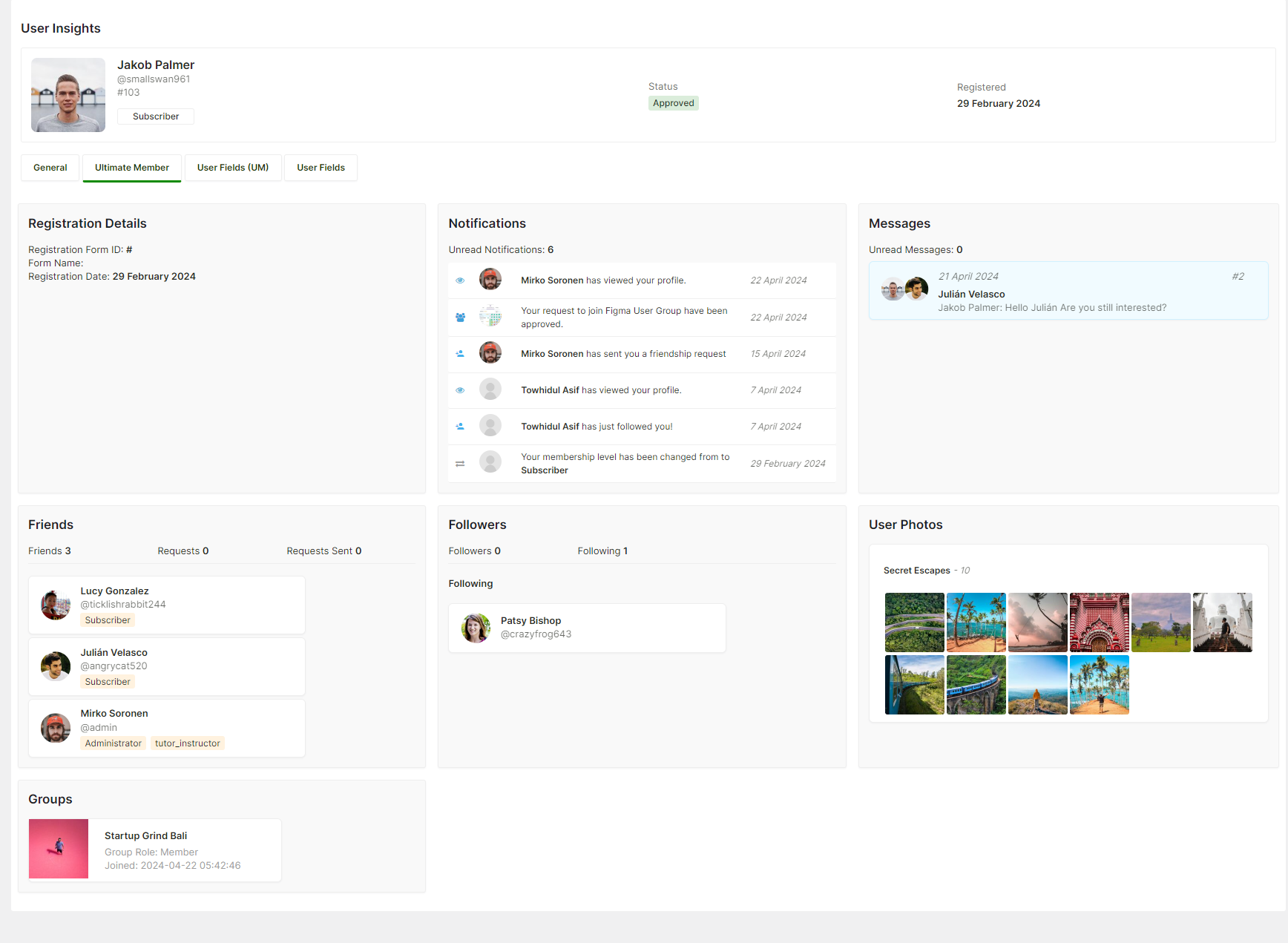
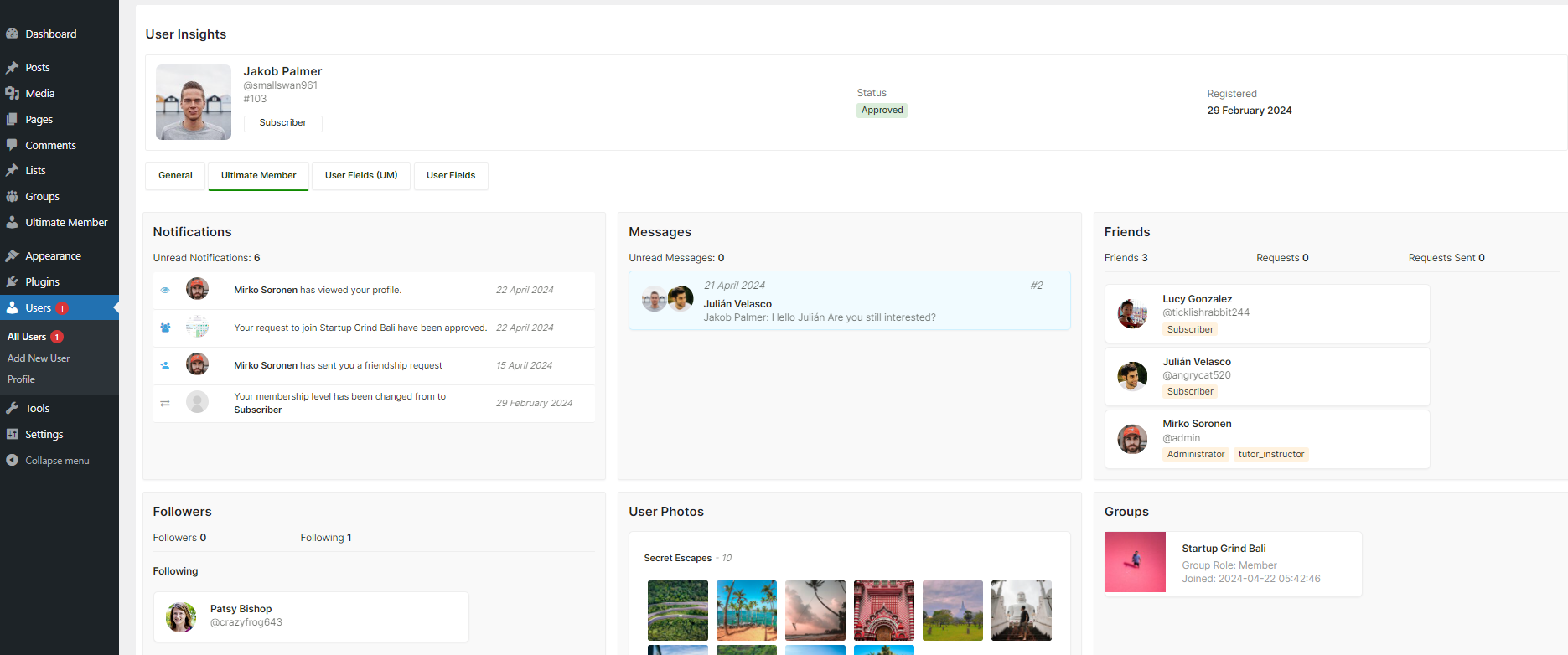
Manage your WordPress community or membership site with ease. WP User Data gives you a complete view of every user inside a clean, user-friendly dashboard. No more logging in as different users or digging through tables. With the free version, you can easily view all WordPress user meta information in a clean, intuitive interface designed for beginners. The plugin’s straightforward design ensures you won’t get lost in complex menus or code. Premium version to unlock powerful features, including editing and deleting meta data, advanced filtering, smart search, and exporting user data to CSV.
UserElements
$25
-
JSM Show User Metadata
The JSM Show User Metadata plugin is a lightweight tool that lets you quickly view user profile meta fields directly from the WordPress user menu. It displays both meta keys and their unserialized values, making it a simple solution for those who just need to access and review WordPress user meta information. Its biggest advantage is its simplicity—there’s no settings page to configure, keeping it fast and hassle-free.
JS Morisset
-
View User Metadata
View User Metadata is a handy plugin that lets administrators quickly access all metadata linked to a user account directly from the user edit screen. With a simple toggle button, admins can view or delete user meta without cluttering the interface. It’s especially useful for developers who need to inspect metadata when required but don’t want it displayed all the time.
Steven Sullivan
-
User Meta Display
User Meta Display by Tripflex adds an AJAX-powered admin page that makes it easy to view, edit, add, and remove user meta without reloading the page. Administrators can choose to display users by Display Name, User Login, or ID, with Display Name set as the default. The plugin creates a “User Meta Display” submenu under the WordPress “Users” menu, where you can manage all user meta in real time. Built with WordPress nonce protection for security, it allows you to refresh user lists or metadata instantly, supports adding or updating meta with HTML, and even provides direct links from the user list table for quick access.
tripflex
-
Metabase – Post & User Meta Editor
Metabase – Post & User Meta Editor is a powerful yet simple tool for WordPress admins who need full visibility into their site’s metadata. With this plugin, you can instantly view, edit, or delete both post meta and user meta—including custom post types and private meta keys—right from the WordPress dashboard. No extra setup is required: after installation, a handy meta box appears at the bottom of posts and user profiles, displaying all related metadata in an organized table. You can even filter which post types the meta box shows up on, giving you full control.
David Towoju
-
Metadata Viewer
Metadata Viewer by PluginizeLab is a versatile plugin that lets you easily inspect meta keys and values for posts, pages, custom post types, users, WooCommerce products, and orders. Once installed, it adds a metadata table to the bottom of the post or user editing screen, complete with a real-time search feature for quickly finding specific meta entries. With a single plugin, you can view and explore all types of WordPress metadata in one place, making it a simple yet powerful tool for developers and site administrators.
PluginizeLab
-
MetaViewer – Debug Meta Data
MetaViewer – Debug Meta Data by Usman Ali Qureshi is a lightweight plugin designed for developers and power users who need full visibility into WordPress meta fields. It displays both post meta and user meta in a clean, tabular format, supporting all post types and even detecting data types such as strings, integers, and arrays. Ideal for debugging, development, or simply reviewing stored metadata, MetaViewer adds meta tables directly to post edit screens and user profile pages. With features like zebra-striped layouts, translation readiness, and compatibility with PHP 7.4 through 8.3, it’s a reliable tool for inspecting WordPress metadata quickly and efficiently.
Usman Ali Qureshi



WordPress stores additional information about every user — profile fields, plugin data, WooCommerce billing details, membership levels — in a database table called wp_usermeta. There is no built-in screen in WordPress to browse or edit this data. Depending on what you need, you can use a PHP function, a WP-CLI command, or a plugin. This guide covers all three, starting with the code functions, then the seven best plugins to do it without touching any code.
WordPress User Meta Functions — Quick Reference
If you need to read or write user meta in your own code, WordPress provides four functions that cover every use case. All four work with any meta key, including data stored by Ultimate Member, WooCommerce, BuddyPress, or any other plugin.
| Function | What it does | Returns |
|---|---|---|
get_user_meta() |
Read a meta value for a user | String, array, or empty string |
add_user_meta() |
Add a new meta row (allows duplicates unless $unique = true) |
int (new meta ID) or false |
update_user_meta() |
Update an existing value, or create it if it does not exist | int or true/false |
delete_user_meta() |
Delete a meta key (and all its values) for a user | true or false |
get_user_meta() — read a user meta field
// Get a single value (pass true as third param)
$membership = get_user_meta( $user_id, 'membership_level', true );
echo $membership; // e.g. "gold"

// Get all values for a key (if multiple rows exist)
$all_values = get_user_meta( $user_id, 'membership_level' );
// Returns: Array ( [0] => "gold" )

// Get ALL meta for a user at once
$all_meta = get_user_meta( $user_id );
// Returns: Array of arrays, keyed by meta_key
When you pass
true, WordPress returns a single scalar value (string or number). When you omit it or pass false, WordPress returns an array of all values for that key — even if only one exists. For almost all cases, true is what you want.
update_user_meta() — write or update a user meta field
// Update (or create) a single meta field
update_user_meta( $user_id, 'membership_level', 'gold' );

// Update with an old value check (only updates if current value matches)
update_user_meta( $user_id, 'membership_level', 'platinum', 'gold' );
add_user_meta() — create a new meta entry
// Add a new meta field (will create a duplicate if the key already exists)
add_user_meta( $user_id, 'purchase_tag', 'course-2025' );

// Add only if the key does not already exist (unique = true)
add_user_meta( $user_id, 'onboarded', '1', true );
delete_user_meta() — remove a user meta field
// Delete a meta key and all its values for a user
delete_user_meta( $user_id, 'temp_token' );

// Delete only if the value matches
delete_user_meta( $user_id, 'purchase_tag', 'course-2025' );
WP-CLI: view user meta from the command line
# List all meta for a user
wp user meta list 42

# Get a single meta value
wp user meta get 42 membership_level

# Update a meta value
wp user meta update 42 membership_level platinum

# Delete a meta field
wp user meta delete 42 temp_token
Common Plugin Meta Keys Reference
Several membership and form plugins store their data under specific, documented meta keys. If you need to read or filter by these in code, use the keys below directly with get_user_meta().
If you need to browse all meta keys stored on your site — including undocumented plugin fields — the plugins below display them directly in the WordPress admin.
7 Best Plugins to View and Edit WordPress User Meta
The following plugins give you a visual interface to read and manage wp_usermeta without writing SQL or opening phpMyAdmin.
Plugin Comparison: Which One Should You Use?
The right plugin depends on what you actually need. Here is a side-by-side comparison of the seven plugins across the features that matter most:
| Plugin | View meta | Edit meta | Delete meta | Search/filter | Export users | Free? |
|---|---|---|---|---|---|---|
| WP User Data | ✓ | ✓ | ✓ | ✓ Pro | ✓ Pro | ✓ Free tier |
| JSM Show User Metadata | ✓ | — | ✓ | — | — | ✓ |
| View User Metadata | ✓ | — | ✓ | — | — | ✓ |
| User Meta Display ⚠️ | ✓ | ✓ | ✓ | Limited | — | ✓ |
| Metabase | ✓ | ✓ | ✓ | — | — | ✓ |
| Metadata Viewer | ✓ | — | — | ✓ | — | ✓ |
| MetaViewer – Debug | ✓ | — | — | — | — | ✓ |
Just want to view? Any of the seven free plugins work. JSM Show User Metadata is the fastest to set up — no configuration at all.
Need to edit or delete? WP User Data Pro or Metabase. WP User Data is the more modern option with inline editing and an audit log.
Need to export? Only WP User Data Pro supports user data export. For Ultimate Member sites specifically, UM Export Pro adds WooCommerce order data, FluentCRM tags, and scheduled delivery.
Just debugging? MetaViewer or JSM Show User Metadata. Both are lightweight and zero-configuration.
What Is WordPress User Meta?
User meta is how WordPress stores additional information about user accounts beyond the core fields in the wp_users table (username, email, password hash, registration date). Every plugin that collects extra data about users — profile fields, membership levels, billing addresses, quiz scores, custom preferences — writes that data into the wp_usermeta table as key-value pairs.
The structure is simple. Each row in wp_usermeta contains four columns:
- umeta_id — unique row identifier
- user_id — links this row to the user in
wp_users - meta_key — the name of the data field (e.g.
billing_city,membership_level) - meta_value — the stored value, as a string or serialized PHP array
One user can have hundreds of rows in wp_usermeta — one for each piece of data any plugin has ever stored about them. For a detailed breakdown of the database structure with SQL examples, see wp_users & wp_usermeta: Complete Column Reference.
Four Ways to Access User Meta Data
1. Using a plugin (no code — recommended for non-developers)
Install any of the seven plugins listed above. WP User Data, JSM Show User Metadata, and View User Metadata all work by adding a meta table directly to the user edit screen inside the standard WordPress admin. No settings to configure before you can start reading meta values.
2. Using PHP code (developers)
Use get_user_meta( $user_id, 'meta_key', true ) inside a theme function or plugin. See the function reference above for complete usage examples including reading all meta at once, filtering users by meta value, and updating/deleting fields.
3. Using WP-CLI (command line)
Run wp user meta list {user_id} to print all meta for a user as a table. Use --format=json or --format=csv to export the output. This is the fastest approach if you already have SSH access to your server.
4. Directly in phpMyAdmin (advanced — use with caution)
Open the wp_usermeta table and filter rows by user_id. You can edit values directly, but this bypasses WordPress validation and can break serialized data if you change arrays without proper escaping. Always back up before editing the database directly. See the step-by-step phpMyAdmin guide for details.
Viewing Ultimate Member Profile Fields
All custom fields created in Ultimate Member’s Form Builder are stored in wp_usermeta, using the field’s meta key as the key and the user’s input as the value. There is no separate table. This means any of the seven plugins above will show UM profile fields alongside all other meta.
One important caveat: select, radio, and checkbox fields in Ultimate Member store the option key (e.g. 2), not the human-readable label (e.g. Female). The viewer plugins above display the raw stored value — you will need to cross-reference it with your UM form field settings to know what it means.
Need to export Ultimate Member users — with fields decoded?
UM Export Pro reads your UM form definitions and decodes stored option values automatically at export time, so your spreadsheet shows “Female” not “2”. Includes WooCommerce order data, FluentCRM tags, background processing for large sites, and scheduled weekly delivery.
For a complete guide to how Ultimate Member stores user data — including PHP code to read UM fields and SQL examples: Where and How Ultimate Member Stores User Data in WordPress.
What Is User Meta in WordPress?
User meta in WordPress is a powerful feature that allows you to store additional information about user accounts beyond the default fields like username, email, and role. It works in a similar way to post meta (custom fields for posts).
The WordPress User Meta API was introduced in version 3.0, enabling developers to easily add, retrieve, and update user-specific data.
These fields can range from simple profile details to complex data generated by plugins:
-
Profile information: nickname, biographical description, profile picture.
-
WooCommerce details: billing address, shipping address, and order history.
-
Custom fields: job designation, membership level, course progress, preferences, and more.
For site owners and administrators, being able to view, edit, and manage user meta fields is crucial — whether for troubleshooting, customizing user profiles, or exporting user data. However, WordPress does not provide a built-in interface to view or edit these fields out of the box.
Where Is User Meta Stored?
WordPress stores all user meta information in the wp_usermeta database table. Each entry is saved as a key-value pair:
-
Key → the name of the meta field (e.g.,
shipping_address). -
Value → the actual data saved by the user (e.g., “123 Main Street, New York”).
For example, WooCommerce saves customer shipping addresses in the wp_usermeta table so that the store can automatically fill shipping fields during checkout.
WordPress Functions for Managing User Meta
Developers can use the WordPress User Meta API to create, update, retrieve, or delete meta fields. The most common functions include:
// Add a new user meta field
add_user_meta( $user_id, 'job_title', 'Designer' );

// Update an existing meta field
update_user_meta( $user_id, 'job_title', 'Senior Designer' );

// Get the value of a meta field
$job = get_user_meta( $user_id, 'job_title', true );

// Delete a meta field
delete_user_meta( $user_id, 'job_title' );
How to Access User Meta Data
There are multiple ways to view or edit user meta in WordPress, depending on your technical skills:
1. Using Code (Developers Only)
-
Use functions like
get_user_meta()inside custom themes or plugins.
2. Using WP-CLI (Command Line)
-
Example:
Displays all meta fields for user ID 123.
3. Directly in the Database (Advanced Users)
-
Access via phpMyAdmin and open the
wp_usermetatable. -
Risky if you don’t know what you’re doing — always back up your site first.
4. Using a Plugin (Recommended for Non-Developers)
-
Plugins provide a simple UI inside the WordPress dashboard.
-
Some allow editing, searching, filtering, and exporting user meta fields without touching code or the database.
Best Plugins to View and Edit WordPress User Meta Fields
WP User Data
WP User Data is one of the most comprehensive plugins for managing WordPress user meta. With the free version, you can quickly view user meta fields. The premium version unlocks advanced features such as editing, deleting, filtering, searching, and exporting user data to CSV.
Key Features:
- View, edit, and delete user meta data
- Filter and search users by meta fields
- Export user data to CSV (Pro)
- Beginner-friendly dashboard navigation
How to Use:
- Install and activate WP User Data.
- Go to Dashboard → WP User Data → Users.
- Click on any user.
- Open the User Fields tab to view meta fields.
JSM Show User Metadata
JSM Show User Metadata is a lightweight plugin that displays user meta fields directly in the WordPress user profile screen. It’s best for site owners who just want a quick way to view meta data without extra setup.
Key Features:
- Displays all user meta keys and values
- Shows unserialized data in readable format
- Option to delete user meta keys
- Integrates with the default WordPress user menu
How to Use:
- Install and activate JSM Show User Metadata.
- Go to Dashboard → Users → All Users.
- Select a user and scroll to the User Metadata section.
View User Metadata
View User Metadata gives administrators a quick way to inspect all metadata associated with a specific user. It’s a straightforward plugin with no bells and whistles, but it gets the job done.
Key Features:
- View all user meta data fields
- Toggle to show/hide user data
- Delete unwanted key/value pairs
- Click-to-focus highlighting for easier reading
How to Use:
- Install and activate View User Metadata.
- Go to Dashboard → Users → All Users.
- Select a user and scroll to the View User Meta section.
User Meta Display (⚠️ Outdated)

User Meta Display is an AJAX-powered plugin that allows you to add, view, edit, and delete user meta fields. It supports searching by User ID, User Login, or Display Name. Unfortunately, this plugin has not been updated since 2014, so it may not work with modern WordPress sites.
Key Features:
- Add, edit, view, and delete user meta
- AJAX-based interface
- Search users by multiple identifiers
How to Use:
- Install and activate User Meta Display.
- Go to Dashboard → Users → User Meta Display.
- Select a user from the dropdown list.
Metabase – Post & User Meta Editor

Metabase provides a simple interface for viewing both post meta and user meta. It integrates into the user profile screen, allowing you to quickly inspect metadata without leaving the dashboard.
Key Features:
- View user and post meta in the dashboard
- Organized display format
- Minimal configuration required
How to Use:
- Install and activate Metabase.
- Go to Dashboard → Users → All Users.
- Select a user and scroll to the Meta section.
Metadata Viewer

Metadata Viewer lets you view meta keys and values for posts, pages, custom post types, users, and WooCommerce data. It integrates directly into the editing screens, so you can see meta data in context.
Key Features:
- Works with posts, pages, custom post types, users, and WooCommerce
- Displays meta keys and values under editing screens
- Lightweight and easy to install
How to Use:
- Install and activate Metadata Viewer.
- Go to Dashboard → Users → All Users.
- Select a user and scroll to the Meta section.
MetaViewer – Debug Meta Data
MetaViewer – Debug Meta Data is designed for developers and advanced users. It presents user meta (and post meta) in a clear, structured table format, including the data type of each field (string, integer, array, etc.).
Key Features:
- View user meta and post meta in table format
- Shows data type for each value
- Works with custom post types
- Useful for debugging serialized data
How to Use:
- Install and activate MetaViewer – Debug Meta Data.
- Go to Dashboard → Users → All Users.
- Select a user and scroll to the Meta section.
Frequently Asked Questions
How do I get a user meta value in WordPress?
Use get_user_meta( $user_id, 'meta_key', true ). Replace $user_id with the user’s numeric ID and 'meta_key' with the name of the field you want to read. Pass true as the third argument to get a single scalar value rather than an array. Example: $city = get_user_meta( 42, 'billing_city', true );
How do I update a user meta value in WordPress?
Use update_user_meta( $user_id, 'meta_key', $new_value ). This updates the value if the key already exists, or creates a new row if it does not. To update without code, use WP User Data Pro — it adds inline editing to the user profile screen.
What meta key does Simple WP Membership use for the membership level?
Simple WP Membership (SWPM) stores the membership level ID under the meta key swpm_membership_level. The value is the numeric ID of the level, not the level name. Other SWPM meta keys include swpm_account_status (values: active, inactive, expired) and swpm_subscription_starts (a timestamp). Read any of these with get_user_meta( $user_id, 'swpm_membership_level', true ).
Can I view user meta without phpMyAdmin?
Yes. Any of the seven plugins on this page display user meta directly inside the WordPress admin — no database access required. WP User Data and JSM Show User Metadata both work immediately after activation with no configuration. WP User Data also lets you edit and delete meta values inline.
How do I see all meta keys in use on my WordPress site?
Run this in your theme or a plugin: global $wpdb; $keys = $wpdb->get_col( "SELECT DISTINCT meta_key FROM {$wpdb->usermeta} ORDER BY meta_key" ); print_r( $keys ); — this returns every distinct meta key ever written to wp_usermeta on your site. Alternatively, the Metadata Viewer plugin adds a searchable meta table to every user edit screen so you can browse keys without code.
Is it safe to edit wp_usermeta directly in phpMyAdmin?
For simple string values, direct database editing is generally safe if you know exactly what you are changing. For serialized values (arrays, objects — anything where the stored value starts with a: or O:), editing directly is risky because changing the string length without updating the length prefix in the serialization format will corrupt the value. Always back up before editing, and use a plugin like WP User Data to edit meta safely through the WordPress interface instead.
Related Guides

- 13+ Widgets
- Live search
- AJAX filters & sorting
- View any user meta fields
- Ultimate Member Profile Fields
- WooCommerce User Data