Ultimate Member does not have a separate global “require approval” toggle. Registration behavior comes from the User Role → Registration Options → Registration Status. The register form must assign (or inherit) that role. Several related emails are off by default — if those stay off, users and admins get silence even when the status flow is correct.
Mental model (read this first)
| What you set on the role | Stored as account_status | User can log in? |
|---|---|---|
| Auto Approve | approved | Yes (auto-login after register) |
| Require Email Activation | awaiting_email_confirmation | No until they click the link |
| Require Admin Review | awaiting_admin_review | No until an admin approves |
Role setting values are approved / checkmail / pending. Database statuses use longer slugs (awaiting_email_confirmation, awaiting_admin_review). Same flow, different names.Auto ApproveRequire Email ActivationRequire Admin ReviewApproveRejectUser submits Register formRole Registration Statusaccount_status = approvedaccount_status = awaiting_email_confirmationaccount_status = awaiting_admin_reviewwelcome_email + auto-login + redirectcheckmail_email with activation linkUser clicks linkapproved + welcome_email + redirectpending_email to user + notification_review to adminAdmin Approves / Rejectsapproved + approved_emailrejected + rejected_email
Step 0 – Turn on the emails first
Path: wp-admin → Ultimate Member → Settings → Emails
Click each template → enable Enable this email notification.
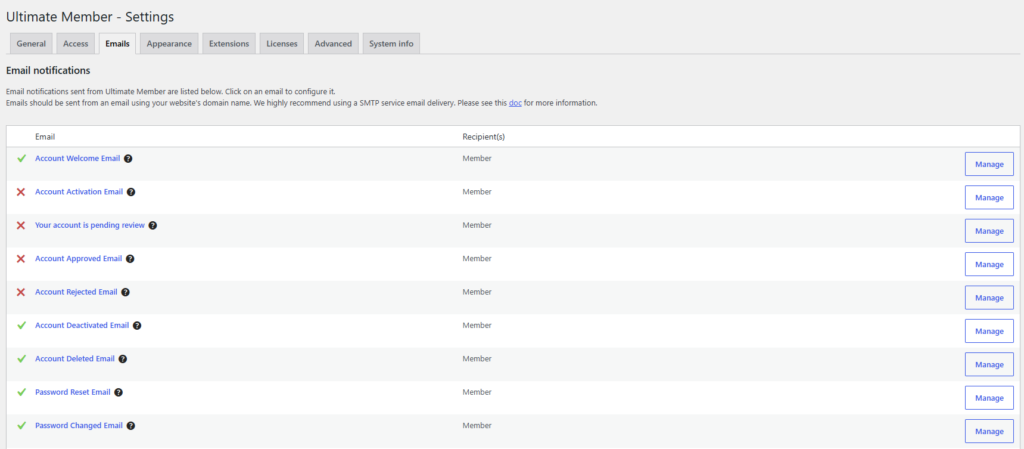
Admin approval path — enable these
| Email title in UI | When it sends | Default |
|---|---|---|
Your account is pending review (pending_email) | After register (admin review) | Off |
Account Needs Review Notification (notification_review) | Admin ping on pending signup | Off |
Account Approved Email (approved_email) | Admin clicks Approve from pending review | Off |
Account Rejected Email (rejected_email) | Admin rejects | Off |
Email activation path — enable these
| Email title in UI | When it sends | Default |
|---|---|---|
Account Activation Email (checkmail_email) | After register / admin resend | Off |
Account Welcome Email (welcome_email) | After activation link is used | On |
New User Notification (notification_new_user) | Admin ping on signup (non-pending roles) | On |
Open Account Activation Email (or Your account is pending review) and show the enable checkbox + subject.
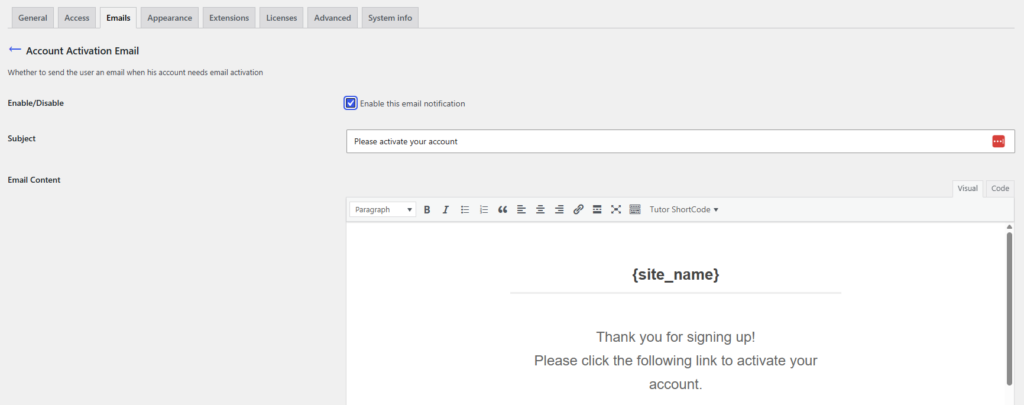
Gotcha: If checkmail_email or pending_email is off, registration still sets the correct status, but the user never gets mail. Same for notification_review — admins won’t be notified of pending members.
Step 1 – Configure the role
Path: Ultimate Member → User Roles → [role] → Registration Options
Full metabox with Registration Status dropdown open (Auto Approve / Require Email Activation / Require Admin Review).

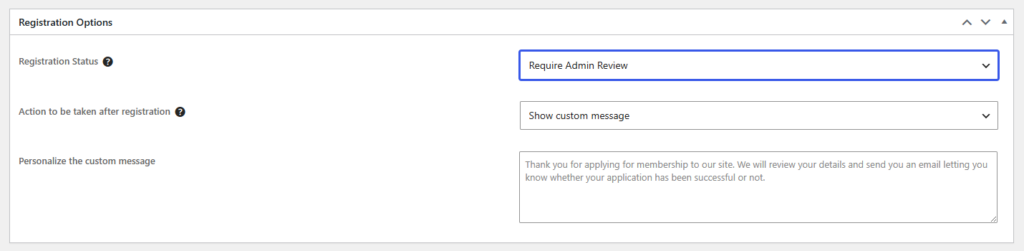
Option A – Require Admin Review
- Set Registration Status = Require Admin Review
- Action to be taken after registration:
- Show custom message — user stays on the register page and sees your message
- Redirect to URL — send them to a “thanks, we’re reviewing” page
- Fill Personalize the custom message or Set Custom Redirect URL
Default message:
Thank you for applying for membership to our site. We will review your details and send you an email letting you know whether your application has been successful or not.
Show status = Require Admin Review + message/redirect fields filled.
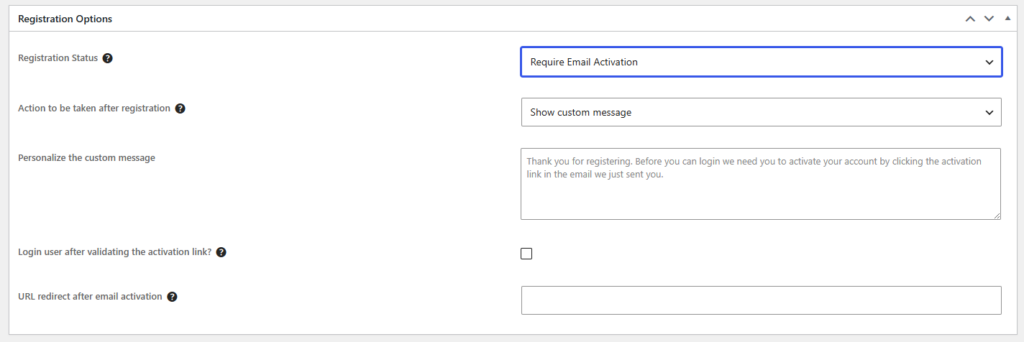
Option B — Require Email Activation
- Set Registration Status = Require Email Activation
- Choose Show custom message or Redirect to URL (same idea as pending)
- Optionally set:
- Login user after validating the activation link? — auto-login after they click the email link
- URL redirect after email activation — where they go after activation (blank = Login page with “account active” notice)
Default message:
Thank you for registering. Before you can login we need you to activate your account by clicking the activation link in the email we just sent you.
Show status = Require Email Activation + message + “Login after activation” + redirect URL.
Option C – Auto Approve (baseline)
- Redirect to profile or Redirect to URL after register
- User is logged in immediately and gets Account Welcome Email
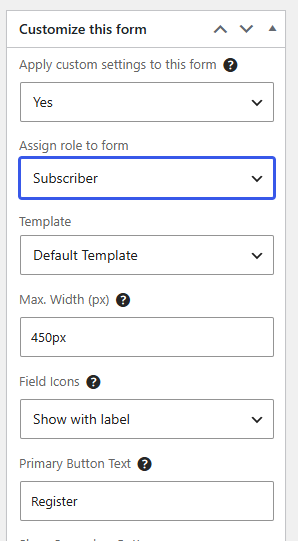
Step 2 – Make sure the register form uses that role
The role setting only applies if the registering user gets that role.
Path: Ultimate Member → Forms → [Register form] → Customize this form
- Enable Apply custom settings to this form
- Set Assign role to form to the role you configured above
If custom settings are off, UM falls back to:
- Ultimate Member → Settings → General → Users → Registration Default Role, then
- WordPress Settings → General → New User Default Role
Show Customize this form with Assign role to form set to your Member (or custom) role.
Flow 1 – Register → Admin approval (end-to-end)
1. User registers
- User fills the UM register form and submits
- UM creates the user and sets
account_status=awaiting_admin_review - User is not logged in
- Emails (if enabled):
- User → Your account is pending review
- Admin(s) → Account Needs Review Notification
- Frontend outcome from the role:
- Show custom message → reload register URL with
?message=pending&um_role=...&um_form_id=...and show the role message - Redirect to URL → go to
_um_pending_url
- Show custom message → reload register URL with
📸 Screenshot 7 — Frontend pending message
Register page after submit, custom “we’re reviewing you” message visible.
📸 Screenshot 8 — Pending user email
Inbox: subject/body of Your account is pending review.
📸 Screenshot 9 — Admin review email
Admin inbox: New user awaiting review with profile link + submitted fields.
2. User tries to log in before approval
Login is blocked. Login page shows:
Your account has not been approved yet.
(URL has ?err=awaiting_admin_review)
📸 Screenshot 10 — Login blocked (pending)
UM login form with the red notice above.
3. Admin finds and approves the user
Path: Users → All Users
Useful UI:
- Status column
- Filter: All Statuses → Pending administrator review
- Row actions under the status (Approve, Reject, Put as pending, Send/Resend activation, Deactivate…)
- Bulk actions group Ultimate Member → Approve Membership / Reject Membership / Resend Activation E-mail / etc.
📸 Screenshot 11 — Users list Status column
Show a user with status Pending administrator review and the Approve / Reject row actions.
📸 Screenshot 12 — Bulk actions
Dropdown open on Approve Membership / Reject Membership.
Approve:
- Status →
approved - User email → Account Approved Email (this template only when approving from admin review)
- No automatic redirect for the user — they must open login (or the link in the email) themselves
Reject:
- Status →
rejected - User email → Account Rejected Email
- Reject is only offered when status is already
awaiting_admin_review
📸 Screenshot 13 — Approved email
User inbox: Your account at {site} is now active with login / password-reset links.
4. After approval – login & redirects
Once approved, normal login works. After-login redirect comes from the role’s Login Options (not Registration Options):
Path: Role → Login Options → Action to be taken after login (+ custom URL if set)
There is no built-in “redirect immediately when admin clicks Approve.” Approval only emails the user.
📸 Screenshot 14 — Login Options
Role Login Options metabox — clarify this applies after successful approved login, not after admin approve click.
Flow 2 – Register → Email activation (end-to-end)
1. User registers
- Status set to
awaiting_email_confirmation - UM generates an activation hash (
account_secret_hash) - User email → Account Activation Email with
{account_activation_link} - Admin email → New User Notification (not the review template)
- Show message (
message=checkmail) or redirect to_um_checkmail_url
Activation link shape:
📸 Screenshot 15 — Frontend checkmail message
Post-register “check your email” message.
📸 Screenshot 16 — Activation email
Show the activation email with the link highlighted.
2. User clicks the activation link
On success UM:
- Approves the account (
approved) - Sends Account Welcome Email (not Approved Email)
- Optionally auto-logs in (role: Login user after validating the activation link?)
- Redirects:
- If password still needs setting → password reset URL
- Else URL redirect after email activation if set
- Else Login page with success: Your account is now active! You can login. (
updated=account_active)
On failure:
| Error | Message |
|---|---|
| Link already used / invalid | This activation link is expired or have already been used. |
| Link past expiry | This activation link is expired. |
📸 Screenshot 17 — After successful activation
Login page success notice, or your custom activation redirect page.
3. User tries to log in before activating
Your account is awaiting email verification.
📸 Screenshot 18 — Login blocked (email confirmation)
4. Admin resends activation
There is no front-end “resend activation” for the registrant. Admins only:
Users → All Users → row action Send activation email / Resend activation email
or bulk Resend Activation E-mail
Also available on the front-end profile actions menu for users with edit_users.
Important: Send/Resend activation forces status to awaiting_email_confirmation and sends checkmail_email again (new hash).
📸 Screenshot 19 — Resend activation
Users list row action / bulk action highlighted.
Activation link expiry (optional)
Path: Ultimate Member → Settings → General → Password
- Email activation link expiration (days)
- Blank = never expires
📸 Screenshot 20 — Expiry setting
Redirects – where each one lives
| Moment | Where you set it | What happens |
|---|---|---|
| After register (Auto Approve) | Role → Registration Options → _um_auto_approve_* | Profile or custom URL (user is logged in) |
| After register (Email activation) | Role → _um_checkmail_action / _um_checkmail_url / message | Message on register page or custom URL |
| After register (Admin review) | Role → _um_pending_action / _um_pending_url / message | Same pattern |
| After clicking activation link | Role → URL redirect after email activation | Custom URL, else login account_active |
| After admin Approve / Reject | — | None — email only; user logs in later |
| After login (approved users) | Role → Login Options | Separate from registration |
Priority notes:
- Auto-approve:
redirect_toin the request (if present) wins, then role auto-approve URL/profile - Pending / checkmail: custom redirect URL if action = redirect; otherwise show-message redirect back to the form with query args
📸 Screenshot 21 — Side-by-side redirects
One image (or two) of Registration Options for pending + checkmail redirect fields labeled “after register only.”
Email checklist
Require Admin Review
- Enable Your account is pending review
- Enable Account Needs Review Notification
- Enable Account Approved Email
- Enable Account Rejected Email (if you reject)
- Role = Require Admin Review + message or redirect
- Register form assigns that role
Require Email Activation
- Enable Account Activation Email
- Keep Account Welcome Email on
- Keep New User Notification on (optional but recommended)
- Role = Require Email Activation + message/redirect + optional post-activation login/URL
- Register form assigns that role
- Optionally set activation link expiry
Related admin settings
| Setting | Path | Effect |
|---|---|---|
| Ignore the “User Role > Registration Options” | Settings → General → Users | Users added from wp-admin are auto-approved |
| Registration Default Role | Settings → General → Users | Fallback role when form doesn’t assign one |
| Email activation link expiration | Settings → General → Password | Days until activation link dies |
📸 Screenshot 22 — Ignore Registration Options
Show the checkbox labeled Automatically approve users from the wp-admin dashboard.
Status reference (Users list labels)
| UI label | Slug |
|---|---|
| Approved | approved |
| Pending administrator review | awaiting_admin_review |
| Waiting email confirmation | awaiting_email_confirmation |
| Membership inactive | inactive |
| Membership rejected | rejected |
Common mistakes
- Emails left disabled — most common. Status works; mail does not.
- Wrong role on the form — Registration Status is on the role, not a form toggle.
- Expecting a redirect when admin clicks Approve — UM only emails; user must log in.
- Confusing Approved Email vs Welcome Email — admin-review approve →
approved_email; email-link / auto-approve →welcome_email. - Looking for a member “resend activation” button — admin-only.
- Rejecting an email-pending user — Reject only applies from
awaiting_admin_review(Put as pending first if needed). - Thinking Login Options control pending users — pending/checkmail users never reach after-login redirects; login is blocked first.