WordPress, being a dynamic content management system, relies heavily on its database to store various types of information, including user data. Understanding how this data is stored and accessed is crucial for WordPress developers and administrators.
What is the WordPress Database?
The WordPress database is a relational database that stores all the content and settings of a WordPress site. It typically uses MySQL or MariaDB as the database management system.
Where Are WordPress User Files Stored?
WordPress user files, such as avatars or uploads, are typically stored in the /wp-content/uploads/ directory. This directory is organized by year and month.
Where Are WordPress Users Stored in a Database?
All WordPress users are stored in the wp_users table. Additional user information, such as metadata, is stored in the wp_usermeta table. Together, these tables allow WordPress to manage user data efficiently.
How the User Tables Relate: A “One-to-Many” System
A key concept of the WordPress database is that it’s relational. This means tables “talk” to each other using unique keys. The ID column in the wp_users table is the “key” that links a single user to all their other data across the database.
This is a “one-to-many” relationship: One user can have many pieces of related data.
Here are the most common relationships:
- One User to Many Meta Entries: A single user in
wp_userscan have dozens of entries inwp_usermeta(e.g., one row forfirst_name, one forlast_name, one fornickname, etc., all linked by the sameuser_id). - One User to Many Posts: A single user can author many posts. The
wp_poststable links to the user via itspost_authorcolumn, which stores the user’sIDfrom thewp_userstable. - One User to Many Comments: When a logged-in user leaves a comment, the
wp_commentstable links that comment via itsuser_idcolumn, which also stores the user’sID.
WordPress User Data Storage
Overview of the wp_users table
The wp_users table is a crucial component of the WordPress database structure. It serves as the primary storage location for essential user information, playing a vital role in user management, authentication, and authorization processes within a WordPress site. This table stores only the most fundamental user data. More detailed user information is typically stored in the wp_usermeta table. Understanding the structure and purpose of the wp_users table is essential for developers working on custom WordPress functionalities, especially those involving user management or authentication processes.
Table Structure : wp_users
The following table illustrates the structure of the wp_users table:
| Column | Type | Description | Example |
|---|---|---|---|
ID | bigint(20) unsigned | Auto-incrementing unique identifier for each user | 1 |
user_login | varchar(60) | The user’s login username | john_doe |
user_pass | varchar(255) | Hashed password for the user’s account | $P$B7m/CZXjiNGOoHrq9pLJgOFl5hxstq1 |
user_nicename | varchar(50) | A “sanitized” version of the username | john-doe |
user_email | varchar(100) | The user’s email address | john@example.com |
user_url | varchar(100) | The user’s website URL (if provided) | https://johndoe.com |
user_registered | datetime | Timestamp of when the user registered | 2023-08-15 14:30:00 |
user_activation_key | varchar(255) | Used for password resets | 1630567890abcdef1234567890abcdef |
user_status | int(11) | A field indicating the user’s status. While historically used for different values, in a standard WordPress installation, 0 means the user is active. On WordPress Multisite networks, this value is sometimes used to identify spam (1) or inactive (2) users, but for a single site, you will almost always see 0. | 0 |
display_name | varchar(250) | The name displayed publicly for the user | John Doe |
Key Points about wp_users table
- Primary Key: The ID column serves as the primary key, ensuring each user has a unique identifier.
- Core Information: This table stores only the most fundamental user data. More detailed user information is typically stored in the
wp_usermetatable. - Security: Passwords are not stored in plain text. The
user_passcolumn contains a hashed version of the password for enhanced security. - Prefix Handling: Remember that the actual table name might be prefixed (e.g., wp_users). Use the $wpdb->users global to reference the table name dynamically in your code.
- Extensibility: For storing additional user data, use the
wp_usermetatable instead of modifying thewp_userstable structure.
Here is an example of how information is stored in the wp_users table:

This table structure ensures that WordPress can efficiently manage user data while maintaining a high level of security and flexibility.
Viewing WordPress Users
- In WordPress Admin: Users → All Users
- Via Database: Query the
wp_userstable - Using WP-CLI:
wp user list
How to Get User Data in WordPress
Use WordPress functions in your PHP code:
$user_info = get_userdata($user_id);
echo $user_info->user_email;
Security Considerations
- Always use prepared statements or WordPress’s built-in functions when querying this table to prevent SQL injection attacks.
- Implement proper user input validation and sanitization before interacting with the
wp_userstable. - Utilize WordPress’s authentication and authorization functions rather than directly querying the table for sensitive operations.
Overview of the wp_usermeta table
Table Structure : wp_usermeta
The following table illustrates the structure of the wp_usermeta table:
| Column | Type | Description | Example |
|---|---|---|---|
umeta_id | bigint(20) unsigned | Unique identifier for each metadata entry | |
user_id | bigint(20) unsigned | Corresponds to the ID in wp_users table | |
meta_key | varchar(255) | Name of the metadata field | wp_capabilities |
meta_value | longtext | Value of the metadata field | a:1:{s:13:”administrator”;b:1;} |
Common metadata includes:
- Nickname
- First name
- Last name
- Description
- User capabilities
WordPress User Roles and Capabilities in the Database
WordPress employs a role-based system to manage user permissions. The wp_users table stores the default role for a user, but the detailed capabilities are stored in the wp_capabilities table, which is a meta table linked to the wp_users table via the user_id field.
WordPress user roles, such as Administrator, Editor, Author, Contributor, and Subscriber, are stored as serialized data in the wp_usermeta table under the wp_capabilities meta_key.
Example of Serialized Data:
a:1:{s:13:"administrator";b:1;}Retrieving Posts by User
User-generated content, such as posts, is stored in the wp_posts table. Each post is associated with the user who created it via the post_author column, which corresponds to the user’s ID in the wp_users table.
To retrieve all posts created by a specific user, you can run a query like this:
SELECT * FROM wp_posts WHERE post_author = [USER_ID];Replace [USER_ID] with the actual user ID.
Retrieving Comments by User
Comments made by users are stored in the wp_comments table. Similar to posts, each comment is linked to a user through the user_id column, which connects to the ID in the wp_users table.
To find comments made by a particular user, you can use the following query:
SELECT * FROM wp_comments WHERE user_id = [USER_ID];Searching and Manipulating User Data
You can query and modify user data using SQL statements directly in phpMyAdmin or SQL Buddy. However, it’s crucial to proceed with caution as incorrect modifications can break your website.
Example SQL query to retrieve all active users:
SELECT * FROM wp_users WHERE user_status = 0;Adding a User Manually
While not recommended for regular user management, you can add a user directly to the database using phpMyAdmin:
- Access phpMyAdmin.
- Select your WordPress database.
- Navigate to the
wp_userstable. - Click “Insert” to add a new row.
- Fill in the required fields, ensuring the password is securely hashed.
- Save the changes.
Important: Remember to encrypt the password using a strong hashing algorithm.
Cautions and Best Practices
- Backup your database before making any changes.
- Avoid editing user data directly unless necessary.
- Use WordPress’s built-in user management tools whenever possible.
- Be aware of security implications when handling user data.
By understanding the structure of WordPress user data, you gain insights into how your website functions and can troubleshoot issues more effectively. However, always prioritize the use of WordPress’s built-in tools for user management.
How to Access the WordPress Database
To interact with the WordPress database, you can use phpMyAdmin, a popular database management tool, or a WordPress plugin like SQL Buddy. There are several ways to access your WordPress database:
- phpMyAdmin: A web-based tool often provided by hosting companies.
- WordPress Database Management Plugins: Such as SQL Buddy.
- Database Queries: For advanced operations, construct SQL queries to directly access the
wp_usersandwp_usermetatables. However, exercise caution to prevent security vulnerabilities. - WordPress Functions: Utilize functions like
get_userdata(),get_users(), andupdate_user_meta()to interact with user data programmatically.
How to Access WordPress Database using phpMyAdmin

- Log in to your hosting control panel (e.g., cPanel).
- Find and click on phpMyAdmin.
- Select your WordPress database from the list on the left.
- Explore the tables and perform operations like queries, backups, or edits.
How to Access WordPress Database using a Plugin – SQL Buddy
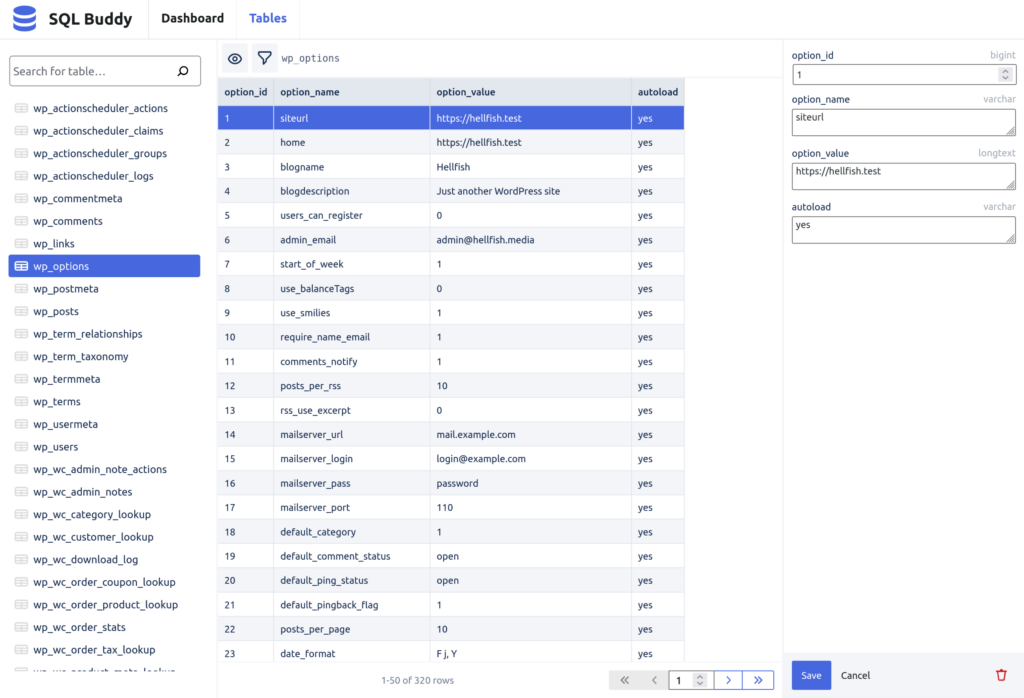
- Install and activate the SQL Buddy plugin from the WordPress plugin repository.
- From your WordPress dashboard go to Tools > SQL Buddy
- Click on the table name to see the content.
- Click on Table field to edit or update the field value.
- Clixk on Save.
Managing WordPress Users in the Database
How to Manually Add an Admin User via phpMyAdmin
- Access phpMyAdmin.
- Select your WordPress database.
- Go to the
wp_userstable and insert a new row. - Fill in the necessary fields (use a password hash generator for
user_pass). - Add a corresponding entry in
wp_usermetafor admin capabilities.
How to Manually Add an Admin User to the WordPress Database via phpMyAdmin
If you need to add an admin user directly through phpMyAdmin, follow these steps:
Insert into wp_users Table:
INSERT INTO wp_users (user_login, user_pass, user_email, user_registered) VALUES ('newadmin', MD5('password'), 'admin@example.com', NOW());Insert into wp_usermeta Table:
INSERT INTO wp_usermeta (user_id, meta_key, meta_value) VALUES (LAST_INSERT_ID(), 'wp_capabilities', 'a:1:{s:13:"administrator";b:1;}');Set User Level:
INSERT INTO wp_usermeta (user_id, meta_key, meta_value) VALUES (LAST_INSERT_ID(), 'wp_user_level', '10');This creates a new admin user with the username newadmin.
How to Import, Export, and Migrate WordPress Users
A common reason for developers to inspect the wp_users tables is to migrate users from one site to another. While you can do this manually, it’s crucial to handle both the wp_users and wp_usermeta tables correctly.
Method 1: Using a Plugin (Recommended)
This is the safest and easiest method, as plugins are built to correctly handle the complex, serialized data found in the wp_usermeta table (like user roles).
- On your old site, install a plugin like Import Export WordPress Users.
- Use the plugin’s “Export” function to download a CSV file of all your users.
- On your new site, install the same plugin.
- Use the plugin’s “Import” function to upload the CSV file.
This method ensures that all metadata and user roles are mapped correctly.
Method 2: Manual Migration via SQL/phpMyAdmin (Advanced)
If you must migrate users manually (for example, if you have no admin access and only database access), you must migrate both tables.
Warning: This is for advanced users. Always back up your database before running any import/export operations.
- On the Old Site (Export):
- Access phpMyAdmin.
- Select your
wp_userstable and click the “Export” tab. Choose “SQL” as the format and click “Go.” Save this file. - Select your
wp_usermetatable and repeat the process. Export it as an SQL file.
- On the New Site (Import):
- Access phpMyAdmin.
- Select your new database. Click the “Import” tab.
- Import the
wp_users.sqlfile first. - Import the
wp_usermeta.sqlfile second.
This process moves all user data, including their hashed passwords.
A Critical Note on Migrating Passwords
You may notice the user_pass column in wp_users contains a long string of random characters (e.g., $P$B7m/CZXji...). This is a secure hash of the user’s password, and it cannot be reversed to find the original password.
When you export the wp_users table, you are exporting this hash. When you import it into your new site, WordPress can authenticate the user with their original password because it checks the password they enter against this same stored hash.
In short, yes, migrating the wp_users table will successfully migrate user passwords so they can log in to the new site without a password reset.
Ultimate Member Data
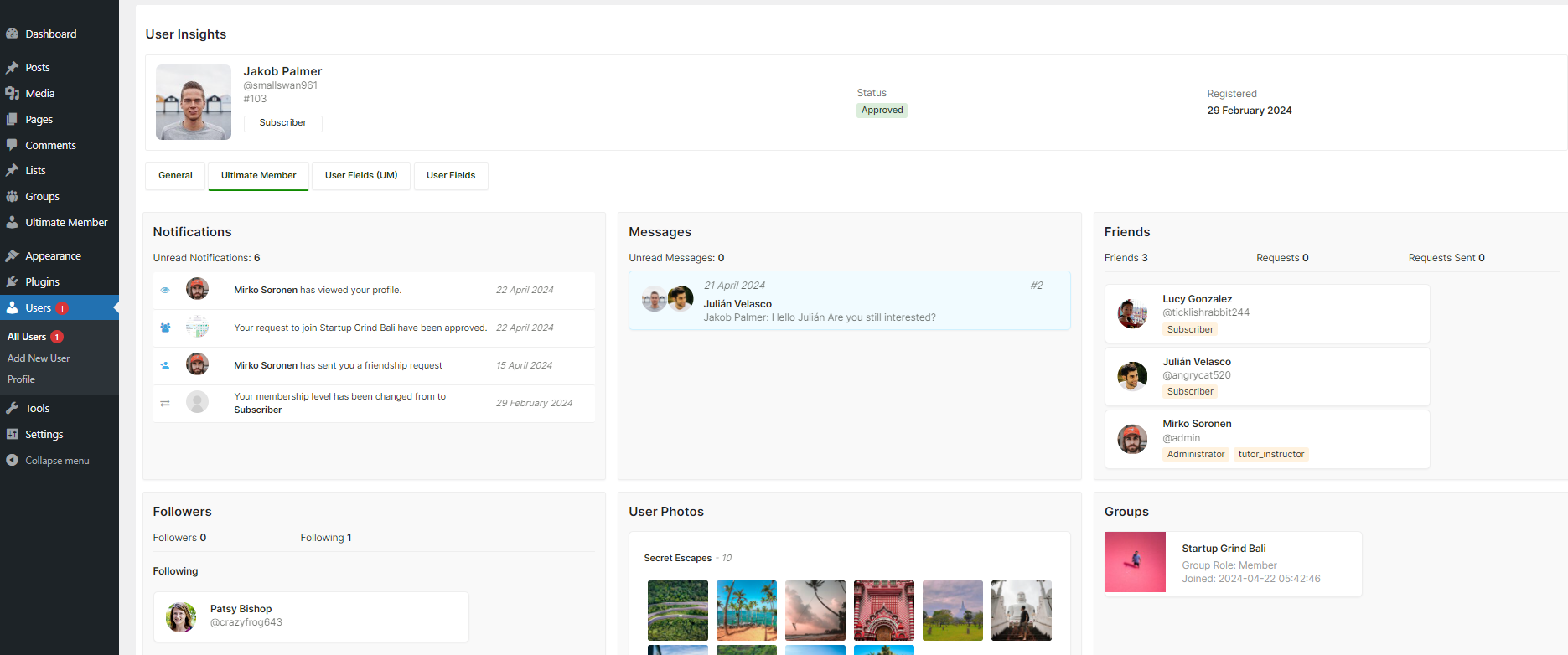
Ultimate Member is another popular plugin for creating advanced user profiles and membership sites. Like BuddyPress, it extends the default user profile with custom fields.
Ultimate Member stores this additional profile data in the wp_usermeta table.
Storage: When you create a custom profile field in Ultimate Member (e.g., a “Job Title” field), the plugin adds a new row to wp_usermeta for any user who fills it out.
Example: If a user with ID 5 enters “Web Developer” into your “Job Title” field, you could find it in wp_usermeta with a query like
SELECT meta_value FROM wp_usermeta WHERE user_id = 5 AND meta_key = 'job_title';(Note: The meta_key is the “Meta Key” you define when creating the field in the Ultimate Member form builder.)
How to get WooCommerce Customer data from WordPress User Database
WooCommerce stores most of its customer-specific data in the wp_usermeta table. Here’s how you can retrieve this data:
Using SQL Query
This query retrieves basic user information along with their billing details.
SELECT u.ID, u.user_email, u.display_name,
       MAX(CASE WHEN um.meta_key = 'billing_first_name' THEN um.meta_value END) as billing_first_name,
       MAX(CASE WHEN um.meta_key = 'billing_last_name' THEN um.meta_value END) as billing_last_name,
       MAX(CASE WHEN um.meta_key = 'billing_company' THEN um.meta_value END) as billing_company,
       MAX(CASE WHEN um.meta_key = 'billing_address_1' THEN um.meta_value END) as billing_address_1,
       MAX(CASE WHEN um.meta_key = 'billing_city' THEN um.meta_value END) as billing_city,
       MAX(CASE WHEN um.meta_key = 'billing_postcode' THEN um.meta_value END) as billing_postcode,
       MAX(CASE WHEN um.meta_key = 'billing_country' THEN um.meta_value END) as billing_country,
       MAX(CASE WHEN um.meta_key = 'billing_phone' THEN um.meta_value END) as billing_phone
FROM wp_users u
LEFT JOIN wp_usermeta um ON u.ID = um.user_id
WHERE um.meta_key IN ('billing_first_name', 'billing_last_name', 'billing_company', 'billing_address_1', 'billing_city', 'billing_postcode', 'billing_country', 'billing_phone')
GROUP BY u.ID;
Using WordPress Functions to Retrieve WooCommerce Data
You can also use WordPress and WooCommerce functions to retrieve customer data programmatically:
<?php
$customer_query = new WP_User_Query(
    array(
        'role' => 'customer',
        'fields' => 'ID'
    )
);
$customers = $customer_query->get_results();

foreach($customers as $customer_id) {
    $customer = new WC_Customer($customer_id);

    echo "Customer ID: " . $customer->get_id() . "<br>";
    echo "Name: " . $customer->get_first_name() . " " . $customer->get_last_name() . "<br>";
    echo "Email: " . $customer->get_email() . "<br>";
    echo "Billing Address: " . $customer->get_billing_address_1() . ", " . $customer->get_billing_city() . "<br>";
    echo "Total Spent: " . $customer->get_total_spent() . "<br>";
    echo "Order Count: " . $customer->get_order_count() . "<br>";
    echo "<hr>";
}
?>
If you prefer to use WordPress functions rather than raw SQL, you can leverage get_user_meta() to fetch specific meta fields related to WooCommerce customers.
// Example using WooCommerce functions
$customer_id = get_current_user_id();
$customer = wc_get_customer($customer_id);

if ($customer) {
  echo 'Customer Name: ' . $customer->get_billing_first_name() . ' ' . $customer->get_billing_last_name();
  // Access other customer data as needed
}
How to get BuddyPress Members data from WordPress User Database
BuddyPress extends the WordPress user profile with additional fields. Here’s how to retrieve this data:
Using SQL Query
sql
Copy
SELECT u.ID, u.user_email, u.display_name,
       MAX(CASE WHEN um.meta_key = 'nickname' THEN um.meta_value END) as nickname,
       MAX(CASE WHEN um.meta_key = 'bp_xprofile_fullname' THEN um.meta_value END) as fullname,
       MAX(CASE WHEN um.meta_key = 'bp_latest_update' THEN um.meta_value END) as latest_update
FROM wp_users u
LEFT JOIN wp_usermeta um ON u.ID = um.user_id
WHERE um.meta_key IN ('nickname', 'bp_xprofile_fullname', 'bp_latest_update')
GROUP BY u.ID;
This query retrieves basic user information along with some BuddyPress-specific data.
Using WordPress/BuddyPress Functions
You can use BuddyPress functions to retrieve member data programmatically:
php
Copy
<?php
$args = array(
    'type' => 'alphabetical',
    'per_page' => 20,
    'page' => 1
);

if ( bp_has_members( $args ) ) :
    while ( bp_members() ) : bp_the_member();
        echo "User ID: " . bp_get_member_user_id() . "<br>";
        echo "Name: " . bp_get_member_name() . "<br>";
        echo "Last Active: " . bp_get_member_last_active() . "<br>";
        echo "Profile URL: " . bp_get_member_permalink() . "<br>";

// Get custom profile fields
        $fields = bp_get_profile_fields_for_user(bp_get_member_user_id());
        foreach ($fields as $field) {
            echo $field->name . ": " . bp_get_profile_field_data(array('user_id' => bp_get_member_user_id(), 'field' => $field->id)) . "<br>";
        }

        echo "<hr>";
    endwhile;
endif;
?>
How to get LearnDash Members data from WordPress User Database
LearnDash stores course progress and quiz data in the WordPress database. Here’s how to retrieve this data:
5.1 Using SQL Query
sql
Copy
SELECT u.ID, u.user_email, u.display_name,
       MAX(CASE WHEN um.meta_key = '_sfwd-course_progress' THEN um.meta_value END) as course_progress,
       MAX(CASE WHEN um.meta_key = '_sfwd-quizzes' THEN um.meta_value END) as quiz_data
FROM wp_users u
LEFT JOIN wp_usermeta um ON u.ID = um.user_id
WHERE um.meta_key IN ('_sfwd-course_progress', '_sfwd-quizzes')
GROUP BY u.ID;
This query retrieves basic user information along with their course progress and quiz data.
5.2 Using WordPress/LearnDash Functions
You can use LearnDash functions to retrieve member data programmatically:
<?php
$user_query = new WP_User_Query( array( 'role' => 'subscriber' ) );
$members = $user_query->get_results();

if ( ! empty( $members ) ) {
    foreach ( $members as $member ) {
        echo "User ID: " . $member->ID . "<br>";
        echo "Name: " . $member->display_name . "<br>";
        echo "Email: " . $member->user_email . "<br>";

// Get course progress
        $course_progress = get_user_meta( $member->ID, '_sfwd-course_progress', true );
        if ( ! empty( $course_progress ) ) {
            foreach ( $course_progress as $course_id => $progress ) {
                $course = get_post( $course_id );
                echo "Course: " . $course->post_title . "<br>";
                echo "Progress: " . $progress['completed'] . "/" . $progress['total'] . "<br>";
            }
        }

// Get quiz data
        $quiz_data = get_user_meta( $member->ID, '_sfwd-quizzes', true );
        if ( ! empty( $quiz_data ) ) {
            foreach ( $quiz_data as $quiz ) {
                echo "Quiz: " . get_the_title( $quiz['quiz'] ) . "<br>";
                echo "Score: " . $quiz['score'] . "/" . $quiz['count'] . "<br>";
            }
        }

        echo "<hr>";
    }
}
?>
Conclusion
Understanding how WordPress stores and manages user data is essential for effective WordPress development and administration. Always be cautious when directly manipulating the database, and make sure to back up your data before making significant changes.