---
title: "wp_users & wp_usermeta: Complete Column Reference (2026)"
date: 2024-08-12
modified: 2026-06-14
author: "userelements_wh8sr3"
url: "https://www.userelements.com/wordpress-user-database-tables/"
markdown_url: "https://www.userelements.com/wordpress-user-database-tables.md"
type: post
excerpt: "WordPress stores all user accounts across two database tables: wp_users holds the core account fields, and wp_usermeta holds every other […]"
categories:
- "Database"
---
WordPress stores all user accounts across two database tables: wp\_users holds the core account fields, and wp\_usermeta holds every other piece of data about a user from profile fields to plugin-generated metadata. This guide gives you a complete column-by-column reference for both tables, with phpMyAdmin steps, SQL queries, and PHP code examples.
**Quick navigation**
Jump to: [wp\_users columns](#wp-users-columns) · [wp\_usermeta columns](#wp-usermeta-columns) · [View in phpMyAdmin](#phpmyadmin) · [PHP functions](#php-functions) · [Export users](#export-users) · [Ultimate Member data](#ultimate-member) · [WooCommerce data](#woocommerce) · [FAQ](#faq)
## What is the WordPress Database?
The WordPress database is a relational database that stores all the content and settings of a WordPress site. It typically uses MySQL or MariaDB as the database management system.
## Where Are WordPress User Files Stored?
WordPress user files, such as avatars or uploads, are typically stored in the `/wp-content/uploads/` directory. This directory is organized by year and month.
## Where Are WordPress Users Stored in a Database?
All WordPress users are stored in the `wp_users` table. Additional user information, such as metadata, is stored in the `wp_usermeta` table. Together, these tables allow WordPress to manage user data efficiently.
## How the User Tables Relate: A “One-to-Many” System
A key concept of the WordPress database is that it’s **relational**. This means tables “talk” to each other using unique keys. The `ID` column in the `wp_users` table is the “key” that links a single user to all their other data across the database.
This is a **“one-to-many”** relationship: **One** user can have **many** pieces of related data.
Here are the most common relationships:
- **One User** to **Many Meta Entries**: A single user in `wp_users` can have dozens of entries in `wp_usermeta` (e.g., one row for `first_name`, one for `last_name`, one for `nickname`, etc., all linked by the same `user_id`).
- **One User** to **Many Posts**: A single user can author many posts. The `wp_posts` table links to the user via its `post_author` column, which stores the user’s `ID` from the `wp_users` table.
- **One User** to **Many Comments**: When a logged-in user leaves a comment, the `wp_comments` table links that comment via its `user_id` column, which also stores the user’s `ID`.
## WordPress User Data Storage
### Overview of the wp\_users table
The wp\_users table is a crucial component of the WordPress database structure. It serves as the primary storage location for essential user information, playing a vital role in user management, authentication, and authorization processes within a WordPress site. This table stores only the most fundamental user data. More detailed user information is typically stored in the `wp_usermeta` table. Understanding the structure and purpose of the `wp_users` table is essential for developers working on custom WordPress functionalities, especially those involving user management or authentication processes.
## wp\_users Table – Column Reference
The `wp_users` table stores one row per WordPress user account. It contains only the most fundamental identity fields. Everything else — roles, profile data, plugin metadata — lives in `wp_usermeta`.
ColumnTypeDescriptionExample value`ID`bigint(20) unsignedAuto-incrementing unique identifier for each user. Primary key. Used to link rows in `wp_usermeta`, `wp_posts`, and `wp_comments`.1`user_login`varchar(60)The username the user types to log in. Unique across all users. Cannot be changed easily after creation.john\_doe`user_pass`varchar(255)The user’s password as a one-way bcrypt/phpass hash. Never stored in plain text. You cannot recover the original password from this value — only reset it.$P$BxZ3…`user_nicename`varchar(50)A URL-safe, lowercase slug version of the username. Used in author archive URLs (e.g. `/author/john-doe/`). Hyphens replace spaces; special characters are stripped. Distinct from `display_name`.john-doe`user_email`varchar(100)The user’s email address. Must be unique. Used for login, password resets, and all WordPress notification emails.john@example.com`user_url`varchar(100)An optional website URL the user can add to their profile. Rarely used on modern sites but preserved for backward compatibility.https://johndoe.com`user_registered`datetimeThe UTC timestamp of when the account was created. Format: `YYYY-MM-DD HH:MM:SS`. Used to sort users by sign-up date and for membership age calculations.2024-03-15 09:42:00`user_activation_key`varchar(255)A temporary token generated when a user requests a password reset. Cleared once the reset is completed. Not used for general login sessions. Format: `timestamp:hash`.1710499320:a1b2c3…`user_status`int(11)Historically intended for user states. In standard WordPress installations, this is always `0` (active). On Multisite, `1` = spam, `2` = inactive. Plugins generally do not use this field — they use `wp_usermeta` for custom status flags instead.0`display_name`varchar(250)The name shown publicly throughout the site — in author bylines, comments, and profile pages. Can be set to the user’s full name, username, or any custom value. Unlike `user_nicename`, it supports spaces and special characters.John Doe **⚠️ Common confusion: user\_nicename vs display\_name**
`user_nicename` is a URL slug used in author archive paths — it is automatically generated from the username and is hyphenated lowercase. `display_name` is the human-readable name shown on the frontend. They can differ. A user’s author URL might be `/author/jdoe/` while their displayed name is “Jane Doe”.
### Key Points about wp\_users table
- **Primary Key**: The ID column serves as the primary key, ensuring each user has a unique identifier.
- **Core Information**: This table stores only the most fundamental user data. More detailed user information is typically stored in the `wp_usermeta` table.
- **Security**: Passwords are not stored in plain text. The `user_pass` column contains a hashed version of the password for enhanced security.
- **Prefix Handling**: Remember that the actual table name might be prefixed (e.g., wp\_users). Use the $wpdb->users global to reference the table name dynamically in your code.
- **Extensibility**: For storing additional user data, use the `wp_usermeta` table instead of modifying the `wp_users` table structure.
Here is an example of how information is stored in the `wp_users` table:
This table structure ensures that WordPress can efficiently manage user data while maintaining a high level of security and flexibility.
### Viewing WordPress Users
1. In WordPress Admin: Users → All Users
2. Via Database: Query the `wp_users` table
3. Using WP-CLI: `wp user list`
### How to Get User Data in WordPress
Use WordPress functions in your PHP code:
```php
$user_info = get_userdata($user_id);
echo $user_info->user_email;
```
### **Security Considerations**
1. Always use prepared statements or WordPress’s built-in functions when querying this table to prevent SQL injection attacks.
2. Implement proper user input validation and sanitization before interacting with the `wp_users` table.
3. Utilize WordPress’s authentication and authorization functions rather than directly querying the table for sensitive operations.
## wp\_usermeta Table — Column Reference
The `wp_usermeta` table stores every additional piece of data attached to a WordPress user, using a flexible key-value structure. Each row is one metadata entry for one user.
ColumnTypeDescriptionExample value`umeta_id`bigint(20) unsignedAuto-incrementing primary key for each metadata row. Not the user ID — just the row identifier.5284`user_id`bigint(20) unsignedForeign key linking this metadata row to the user’s `ID` in `wp_users`. One user can have hundreds of rows in this table.12`meta_key`varchar(255)The name of the metadata field. Keys prefixed with `_` are treated as private (hidden in some UI contexts). Keys prefixed with `wp_` are core WordPress data. Plugin keys use their own naming convention.wp\_capabilities`meta_value`longtextThe stored value. Can be a plain string, a number, or a PHP-serialized array/object. Always unserialized before use — never read raw serialized values directly into your code.`a:1:{s:13:"administrator";b:1;}`### Common built-in meta\_key values
meta\_keyWhat it storesWho writes it`wp_capabilities`Serialized array of the user’s roles (e.g. `{"administrator":true}`)WordPress core`wp_user_level`Legacy numeric capability level (0–10). Deprecated but still present on older sites.WordPress core (legacy)`first_name`User’s first name from their profileWordPress core`last_name`User’s last name from their profileWordPress core`nickname`Nickname field on the user profile screenWordPress core`description`Biographical info fieldWordPress core`session_tokens`Serialized active login sessions (used for “all devices” logout)WordPress core`billing_*`WooCommerce billing address fields (`billing_first_name`, `billing_address_1`, etc.)WooCommerce`shipping_*`WooCommerce shipping address fieldsWooCommerce`_woocommerce_persistent_cart_*`Saved cart contents for logged-in customersWooCommerceCustom field keyAny field created in Ultimate Member, ACF, Gravity Forms, BuddyPress, etc.Respective plugin### WordPress User Roles and Capabilities in the Database
WordPress employs a role-based system to manage user permissions. The `wp_users` table stores the default role for a user, but the detailed capabilities are stored in the `wp_capabilities` table, which is a meta table linked to the `wp_users` table via the `user_id` field.
WordPress user roles, such as Administrator, Editor, Author, Contributor, and Subscriber, are stored as serialized data in the `wp_usermeta` table under the `wp_capabilities` meta\_key.
### Example of Serialized Data:
```php
a:1:{s:13:"administrator";b:1;}
```
### Retrieving Posts by User
User-generated content, such as posts, is stored in the `wp_posts` table. Each post is associated with the user who created it via the **`post_author`** column, which corresponds to the user’s **`ID`** in the **`wp_users`** table.
To retrieve all posts created by a specific user, you can run a query like this:
```php
SELECT * FROM wp_posts WHERE post_author = [USER_ID];
```
Replace `[USER_ID]` with the actual user ID.
### Retrieving Comments by User
Comments made by users are stored in the `wp_comments` table. Similar to posts, each comment is linked to a user through the `user_id` column, which connects to the `ID` in the `wp_users` table.
To find comments made by a particular user, you can use the following query:
```php
SELECT * FROM wp_comments WHERE user_id = [USER_ID];
```
### Searching and Manipulating User Data
You can query and modify user data using SQL statements directly in phpMyAdmin or SQL Buddy. However, it’s crucial to proceed with caution as incorrect modifications can break your website.
**Example SQL query to retrieve all active users:**
```php
SELECT * FROM wp_users WHERE user_status = 0;
```
### Adding a User Manually
While not recommended for regular user management, you can add a user directly to the database using phpMyAdmin:
1. Access phpMyAdmin.
2. Select your WordPress database.
3. Navigate to the `wp_users` table.
4. Click “Insert” to add a new row.
5. Fill in the required fields, ensuring the password is securely hashed.
6. Save the changes.
**Important:** Remember to encrypt the password using a strong hashing algorithm.
### Cautions and Best Practices
- Backup your database before making any changes.
- Avoid editing user data directly unless necessary.
- Use WordPress’s built-in user management tools whenever possible.
- Be aware of security implications when handling user data.
By understanding the structure of WordPress user data, you gain insights into how your website functions and can troubleshoot issues more effectively. However, always prioritize the use of WordPress’s built-in tools for user management.
## How to Access the WordPress Database
To interact with the WordPress database, you can use phpMyAdmin, a popular database management tool, or a WordPress plugin like SQL Buddy. There are several ways to access your WordPress database:
1. **phpMyAdmin**: A web-based tool often provided by hosting companies.
2. **WordPress Database Management Plugins**: Such as SQL Buddy.
3. **Database Queries**: For advanced operations, construct SQL queries to directly access the `wp_users` and `wp_usermeta` tables. However, exercise caution to prevent security vulnerabilities.
4. **WordPress Functions:** Utilize functions like `get_userdata(`), `get_users()`, and `update_user_meta()` to interact with user data programmatically.
### **How to Access WordPress Database using phpMyAdmin**
1. Log in to your hosting control panel (e.g., cPanel).
2. Find and click on phpMyAdmin.
3. Select your WordPress database from the list on the left.
4. Explore the tables and perform operations like queries, backups, or edits.
### **How to Access WordPress Database using a Plugin – SQL Buddy**
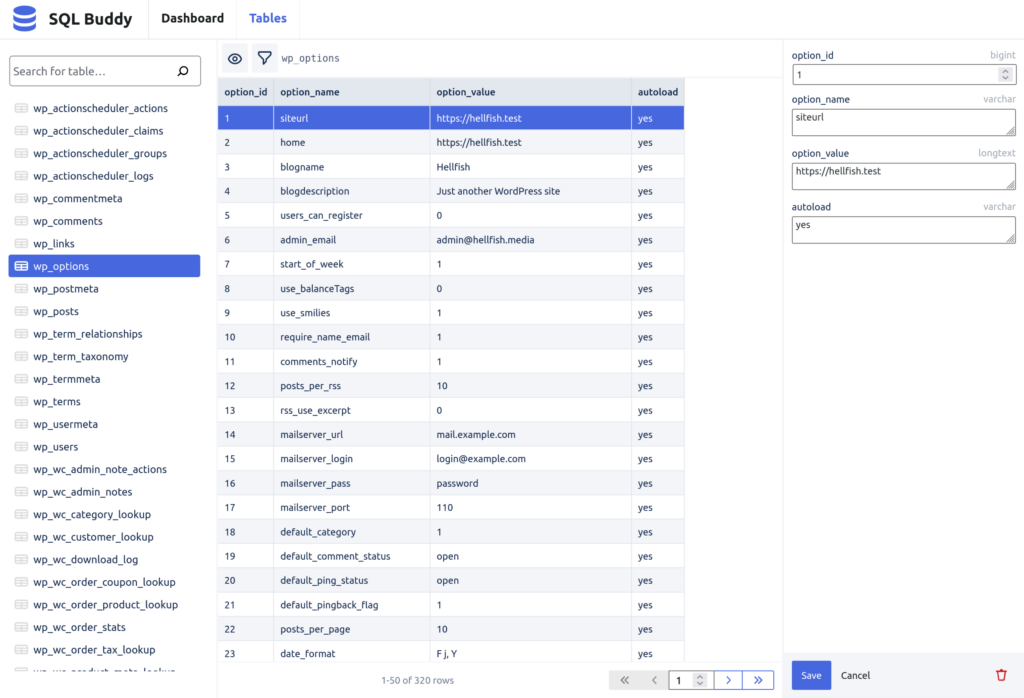1. Install and activate the [SQL Buddy](https://wordpress.org/plugins/sql-buddy/) plugin from the WordPress plugin repository.
2. From your WordPress dashboard go to Tools > SQL Buddy
3. Click on the table name to see the content.
4. Click on Table field to edit or update the field value.
5. Clixk on Save.
## Managing WordPress Users in the Database
### How to Manually Add an Admin User via phpMyAdmin
1. Access phpMyAdmin.
2. Select your WordPress database.
3. Go to the `wp_users` table and insert a new row.
4. Fill in the necessary fields (use a password hash generator for `user_pass`).
5. Add a corresponding entry in `wp_usermeta` for admin capabilities.
## How to Manually Add an Admin User to the WordPress Database via phpMyAdmin
If you need to add an admin user directly through phpMyAdmin, follow these steps:
**Insert into wp\_users Table:**
```php
`INSERT INTO wp_users (user_login, user_pass, user_email, user_registered) VALUES ('newadmin', MD5('password'), 'admin@example.com', NOW());`
```
**Insert into wp\_usermeta Table:**
```php
`INSERT INTO wp_usermeta (user_id, meta_key, meta_value) VALUES (LAST_INSERT_ID(), 'wp_capabilities', 'a:1:{s:13:"administrator";b:1;}');`
```
**Set User Level:**
```php
`INSERT INTO wp_usermeta (user_id, meta_key, meta_value) VALUES (LAST_INSERT_ID(), 'wp_user_level', '10');`
```
This creates a new admin user with the username `newadmin`.
## How to Import, Export, and Migrate WordPress Users
A common reason for developers to inspect the `wp_users` tables is to migrate users from one site to another. While you can do this manually, it’s crucial to handle both the `wp_users` and `wp_usermeta` tables correctly.
### Method 1: Using a Plugin (Recommended)
This is the safest and easiest method, as plugins are built to correctly handle the complex, serialized data found in the `wp_usermeta` table (like user roles).
1. On your *old* site, install a plugin like **Import Export WordPress Users**.
2. Use the plugin’s “Export” function to download a CSV file of all your users.
3. On your *new* site, install the same plugin.
4. Use the plugin’s “Import” function to upload the CSV file.
This method ensures that all metadata and user roles are mapped correctly.
### Method 2: Manual Migration via SQL/phpMyAdmin (Advanced)
If you must migrate users manually (for example, if you have no admin access and only database access), you must migrate **both** tables.
> **Warning:** This is for advanced users. Always back up your database before running any import/export operations.
1. **On the Old Site (Export):**
- Access phpMyAdmin.
- Select your `wp_users` table and click the “Export” tab. Choose “SQL” as the format and click “Go.” Save this file.
- Select your `wp_usermeta` table and repeat the process. Export it as an SQL file.
2. **On the New Site (Import):**
- Access phpMyAdmin.
- Select your new database. Click the “Import” tab.
- Import the `wp_users.sql` file first.
- Import the `wp_usermeta.sql` file second.
This process moves all user data, including their hashed passwords.
### A Critical Note on Migrating Passwords
You may notice the `user_pass` column in `wp_users` contains a long string of random characters (e.g., `$P$B7m/CZXji...`). This is a secure **hash** of the user’s password, and it cannot be reversed to find the original password.
When you export the `wp_users` table, you are exporting this *hash*. When you import it into your new site, WordPress can authenticate the user with their **original password** because it checks the password they enter against this same stored hash.
In short, **yes, migrating the `wp_users` table will successfully migrate user passwords** so they can log in to the new site without a password reset.
## How Ultimate Member Stores User Data
[Ultimate Member stores all custom profile field data in `wp_usermeta`](https://www.userelements.com/ultimate-member-database/). Each field you create in the UM Form Builder adds a row to `wp_usermeta` for every user who fills it in — using the field’s meta key as `meta_key` and the user’s input as `meta_value`.
Ultimate Member does **not** create a separate user table for standard profile data. It uses WordPress’s native system, which means all data is queryable with standard WordPress functions and SQL.
### Reading Ultimate Member field values
```php
$user_id = 42;
// Option 1: WordPress core function (always works)
$job_title = get_user_meta( $user_id, 'job_title', true );
// Option 2: Ultimate Member helper (use inside UM-specific code)
um_fetch_user( $user_id );
$job_title = um_user( 'job_title' );
// Get user's UM role
$um_role = um_user( 'role' );
```
For select, radio, and checkbox fields in Ultimate Member, the stored `meta_value` is the option key, not the label. So a “Gender” field with options Male/Female might store `1` or `2`. Reading these raw values and needing them decoded is a common pain point, it is one of the main problems [UM Export Pro](https://www.userelements.com/ultimate-member-export/) solves automatically at export time.
For a full guide to the Ultimate Member database structure, custom table options, and advanced queries: [Where and How Ultimate Member Stores User Data](https://www.userelements.com/ultimate-member-database/).
## How WooCommerce Stores Customer Data in wp\_usermeta
WooCommerce writes customer-specific data into `wp_usermeta` using a set of well-documented meta keys. The most important ones for querying and exporting:
meta\_keyWhat it stores`billing_first_name`Billing first name`billing_last_name`Billing last name`billing_company`Company name`billing_address_1`First line of billing address`billing_city`Billing city`billing_postcode`Billing postal/zip code`billing_country`Billing country code (e.g. US, GB)`billing_phone`Phone number from billing form`billing_email`Email used during checkout (may differ from account email)`shipping_*`Equivalent set of keys for shipping address`_woocommerce_persistent_cart_*`Saved cart contents (serialized)WooCommerce order totals and order count are **not** stored in `wp_usermeta` — they are calculated from the `wp_posts` / `wp_wc_orders` tables at query time. Use the `WC_Customer` object or a dedicated export plugin to retrieve them efficiently.
```php
// Get a WooCommerce customer's lifetime value and order count
$customer = new WC_Customer( $user_id );
echo $customer->get_total_spent(); // e.g. 842.50
echo $customer->get_order_count(); // e.g. 7
echo $customer->get_billing_city(); // e.g. London
```
## wp\_posts Table — Column Reference
The `wp_posts` table stores one row per piece of content — posts, pages,
attachments, revisions, navigation items, and any custom post type. Despite the name, it
holds far more than blog posts. Each row is linked to its author through the
`post_author` column, which stores the user’s `ID` from
`wp_users`.
ColumnTypeDescriptionExample value`ID`bigint(20) unsignedAuto-incrementing unique identifier for each post. Primary key. Referenced by `post_author` in this table, `post_id` in `wp_postmeta`, and `comment_post_ID` in `wp_comments`.128`post_author`bigint(20) unsignedThe `ID` of the user who created the post, linking to `wp_users`. Indexed. Defaults to `0`.1`post_date`datetimePublish date/time in the site’s local timezone. Format: `YYYY-MM-DD HH:MM:SS`.2026-05-14 09:42:00`post_date_gmt`datetimeThe same publish timestamp expressed in UTC. Used for sorting and feeds.2026-05-14 02:42:00`post_content`longtextThe full body of the post, including block markup or shortcodes. The largest column in the table.<!– wp:paragraph –>…`post_title`textThe post or page title as entered in the editor.Hello World`post_excerpt`textAn optional manual summary. Empty unless set; themes may auto-generate one at display time.A short summary…`post_status`varchar(20)The current state of the post: `publish`, `draft`, `pending`, `private`, `future`, `trash`, `auto-draft`, or `inherit` (revisions/attachments). Defaults to `publish`.publish`comment_status`varchar(20)Whether comments are accepted on this post: `open` or `closed`.open`ping_status`varchar(20)Whether the post accepts pingbacks/trackbacks: `open` or `closed`.open`post_password`varchar(255)If set, the post is password-protected and this is the required password (plain text). Empty by default.`post_name`varchar(200)The URL slug used in permalinks (e.g. `/hello-world/`). Indexed. Lowercase, hyphenated, URL-safe.hello-world`to_ping`textA list of URLs WordPress still needs to ping for this post. Rarely populated on modern sites.`pinged`textA list of URLs that have already been pinged for this post.`post_modified`datetimeDate/time of the last edit, in site local time.2026-05-20 14:10:00`post_modified_gmt`datetimeThe same last-edit timestamp in UTC.2026-05-20 07:10:00`post_content_filtered`longtextA cache slot for pre-processed content. Usually empty; used by some plugins/themes.`post_parent`bigint(20) unsignedThe `ID` of a parent post — used for page hierarchy, attachment-to-post links, and revision-to-original links. Indexed. `0` means no parent.0`guid`varchar(255)A Globally Unique Identifier set at creation. Despite looking like a URL, it is **not** a reliable permalink and should never be used as one or edited.https://example.com/?p=128`menu_order`int(11)A manual sort order, mainly used for pages and attachments. Defaults to `0`.0`post_type`varchar(20)The kind of content: `post`, `page`, `attachment`, `revision`, `nav_menu_item`, or any registered custom post type. Part of the composite `type_status_date` index. Defaults to `post`.page`post_mime_type`varchar(100)For attachments only — the file’s MIME type. Empty for posts and pages.image/jpeg`comment_count`bigint(20)A running count of approved comments on the post, kept in sync by WordPress so it doesn’t have to be recounted on every page load.7 **⚠️ Indexes & the ID primary key**
`ID` is the primary key (`bigint(20) unsigned`, `AUTO_INCREMENT`). Beyond it, `wp_posts` ships with four indexes: `post_name` (slug lookups, indexed on the first 191 characters), `type_status_date` (a composite of `post_type`, `post_status`, `post_date`, `ID` — this powers nearly every archive and admin query), `post_parent`, and `post_author`. There is no foreign-key constraint to `wp_users`; the link via `post_author` is enforced by WordPress, not the database.
### Getting a post’s author and metadata
```php
$post_id = 128;
// The post row
$post = get_post( $post_id );
echo $post->post_title;
echo $post->post_status;
// The author (joins wp_posts.post_author to wp_users.ID)
$author = get_userdata( $post->post_author );
echo $author->display_name;
// Custom fields live in wp_postmeta, not wp_posts
$value = get_post_meta( $post_id, 'your_meta_key', true );
```
All posts by one author are linked through `post_author`:
```php
SELECT ID, post_title, post_status
FROM wp_posts
WHERE post_author = 1 AND post_type = 'post' AND post_status = 'publish';
```
## How to Migrate WordPress Users to Another Site
To move users between WordPress installations, you must migrate *both* `wp_users` and `wp_usermeta`. Migrating only `wp_users` leaves behind all roles, profile fields, and plugin data.
### Method 1: Plugin (recommended)
Install a plugin like **Import Export WordPress Users** on both sites. Export a CSV from the source site, then import it on the destination. The plugin handles role serialization correctly.
### Method 2: SQL dump via phpMyAdmin
1. On the source site: export both tables as SQL (`wp_users` first, then `wp_usermeta`).
2. On the destination site: import both SQL files in the same order.
3. If the destination database uses a different table prefix (e.g. `wp2_`), find-and-replace the prefix in the SQL files before importing.
**✓ Note on passwords**
The `user_pass` column stores a password hash, not the plain text password. When you migrate `wp_users`, users can log in to the new site with their original password — the hash is portable. No password reset is required.
## How to Add an Admin User Directly in the Database
If you are locked out of WordPress and cannot log in, you can create an administrator account via phpMyAdmin. Run these SQL statements in sequence:
```sql
-- Step 1: Insert the user into wp_users
-- Replace 'newadmin', 'securepassword', and 'admin@example.com' with your values
INSERT INTO wp_users (user_login, user_pass, user_nicename, user_email, user_registered, user_status, display_name)
VALUES ('newadmin', MD5('securepassword'), 'newadmin', 'admin@example.com', NOW(), 0, 'New Admin');
-- Step 2: Grant administrator capabilities in wp_usermeta
-- Use LAST_INSERT_ID() to reference the user just created above
INSERT INTO wp_usermeta (user_id, meta_key, meta_value)
VALUES (LAST_INSERT_ID(), 'wp_capabilities', 'a:1:{s:13:"administrator";b:1;}');
INSERT INTO wp_usermeta (user_id, meta_key, meta_value)
VALUES (LAST_INSERT_ID(), 'wp_user_level', '10');
```
**⚠️ Use a proper password hash in production**
`MD5()` is shown above for simplicity but is not secure. After creating the account, log in to WordPress and change the password immediately — WordPress will re-hash it using its secure phpass algorithm.
## How to get BuddyPress Members data from WordPress User Database
BuddyPress extends the WordPress user profile with additional fields. Here’s how to retrieve this data:
### Using SQL Query
```php
SELECT u.ID, u.user_email, u.display_name,
MAX(CASE WHEN um.meta_key = 'nickname' THEN um.meta_value END) as nickname,
MAX(CASE WHEN um.meta_key = 'bp_xprofile_fullname' THEN um.meta_value END) as fullname,
MAX(CASE WHEN um.meta_key = 'bp_latest_update' THEN um.meta_value END) as latest_update
FROM wp_users u
LEFT JOIN wp_usermeta um ON u.ID = um.user_id
WHERE um.meta_key IN ('nickname', 'bp_xprofile_fullname', 'bp_latest_update')
GROUP BY u.ID;
```
This query retrieves basic user information along with some BuddyPress-specific data.
### Using WordPress/BuddyPress Functions
You can use BuddyPress functions to retrieve member data programmatically:
```php
'alphabetical',
'per_page' => 20,
'page' => 1
);
if ( bp_has_members( $args ) ) :
while ( bp_members() ) : bp_the_member();
echo "User ID: " . bp_get_member_user_id() . "
";
echo "Name: " . bp_get_member_name() . "
";
echo "Last Active: " . bp_get_member_last_active() . "
";
echo "Profile URL: " . bp_get_member_permalink() . "
";
// Get custom profile fields
$fields = bp_get_profile_fields_for_user(bp_get_member_user_id());
foreach ($fields as $field) {
echo $field->name . ": " . bp_get_profile_field_data(array('user_id' => bp_get_member_user_id(), 'field' => $field->id)) . "
";
}
echo "
";
endwhile;
endif;
?>
```
## How to get LearnDash Members data from WordPress User Database
LearnDash stores course progress and quiz data in the WordPress database. Here’s how to retrieve this data:
### 5.1 Using SQL Query
```php
SELECT u.ID, u.user_email, u.display_name,
MAX(CASE WHEN um.meta_key = '_sfwd-course_progress' THEN um.meta_value END) as course_progress,
MAX(CASE WHEN um.meta_key = '_sfwd-quizzes' THEN um.meta_value END) as quiz_data
FROM wp_users u
LEFT JOIN wp_usermeta um ON u.ID = um.user_id
WHERE um.meta_key IN ('_sfwd-course_progress', '_sfwd-quizzes')
GROUP BY u.ID;
```
This query retrieves basic user information along with their course progress and quiz data.
### 5.2 Using WordPress/LearnDash Functions
You can use LearnDash functions to retrieve member data programmatically:
```php
'subscriber' ) );
$members = $user_query->get_results();
if ( ! empty( $members ) ) {
foreach ( $members as $member ) {
echo "User ID: " . $member->ID . "
";
echo "Name: " . $member->display_name . "
";
echo "Email: " . $member->user_email . "
";
// Get course progress
$course_progress = get_user_meta( $member->ID, '_sfwd-course_progress', true );
if ( ! empty( $course_progress ) ) {
foreach ( $course_progress as $course_id => $progress ) {
$course = get_post( $course_id );
echo "Course: " . $course->post_title . "
";
echo "Progress: " . $progress['completed'] . "/" . $progress['total'] . "
";
}
}
// Get quiz data
$quiz_data = get_user_meta( $member->ID, '_sfwd-quizzes', true );
if ( ! empty( $quiz_data ) ) {
foreach ( $quiz_data as $quiz ) {
echo "Quiz: " . get_the_title( $quiz['quiz'] ) . "
";
echo "Score: " . $quiz['score'] . "/" . $quiz['count'] . "
";
}
}
echo "
";
}
}
?>
```
## Frequently Asked Questions
**What is the difference between wp\_users and wp\_usermeta?**`wp_users` stores the core user account fields — one row per user. `wp_usermeta` stores every other piece of data about a user in a flexible key-value format, with many rows per user. Roles, profile fields, plugin data, and WooCommerce billing information all live in `wp_usermeta`.
**What does user\_nicename mean in WordPress?**`user_nicename` is a URL-safe slug version of the username, used in author archive URLs (e.g. `/author/john-doe/`). It is automatically generated from `user_login` at registration — spaces become hyphens, special characters are removed, and everything is lowercased. It is not the same as `display_name`, which is the name shown publicly on the site and can contain spaces and mixed case.
**What does user\_status = 0 mean in WordPress?**On a standard WordPress single-site installation, `user_status` is always `0` and means the account is active. The field was originally designed for more values but was never fully implemented in single-site WordPress. On Multisite, `1` indicates a spam account and `2` indicates an inactive account. Plugins that need custom user states (like “pending approval”) use `wp_usermeta` fields rather than this column.
**How do I find a user’s ID in the WordPress database?**There are three ways: (1) In WordPress admin, go to Users → All Users, click on a user, and look at the URL — the `?user_id=42` parameter is the user’s ID. (2) In phpMyAdmin, open the `wp_users` table and find the ID column. (3) Via PHP: `$user = get_user_by('email', 'john@example.com'); echo $user->ID;`
**Where does Ultimate Member store custom profile fields?**All Ultimate Member custom profile fields are stored in `wp_usermeta`, using the field’s meta key as `meta_key` and the user’s input as `meta_value`. Select and radio field values are stored as option keys (e.g. `1` or `2`), not as the human-readable labels. See our [full guide to Ultimate Member’s database structure](https://www.userelements.com/ultimate-member-database/).
**How do I export WordPress users with all their custom fields?**WordPress has no built-in user export. For Ultimate Member sites, [UM Export Pro](https://www.userelements.com/ultimate-member-export/) exports all UM profile fields with decoded labels, plus WooCommerce and FluentCRM data. For general WordPress sites, the WP-CLI command `wp user list --format=csv` exports core fields, or use a plugin like Import Export WordPress Users for custom meta fields.
**Can I view all wp\_usermeta fields without phpMyAdmin?**Yes. The [WP User Data plugin](https://www.userelements.com/wp-user-data/) (free version available) displays a searchable table of every user meta key and value directly inside the WordPress dashboard, without any database access required. You can also edit and delete meta values from the same interface.
### Conclusion
Understanding how WordPress stores and manages user data is essential for effective WordPress development and administration. Always be cautious when directly manipulating the database, and make sure to back up your data before making significant changes.